デジタル文書をプロのように整理する10のコツ
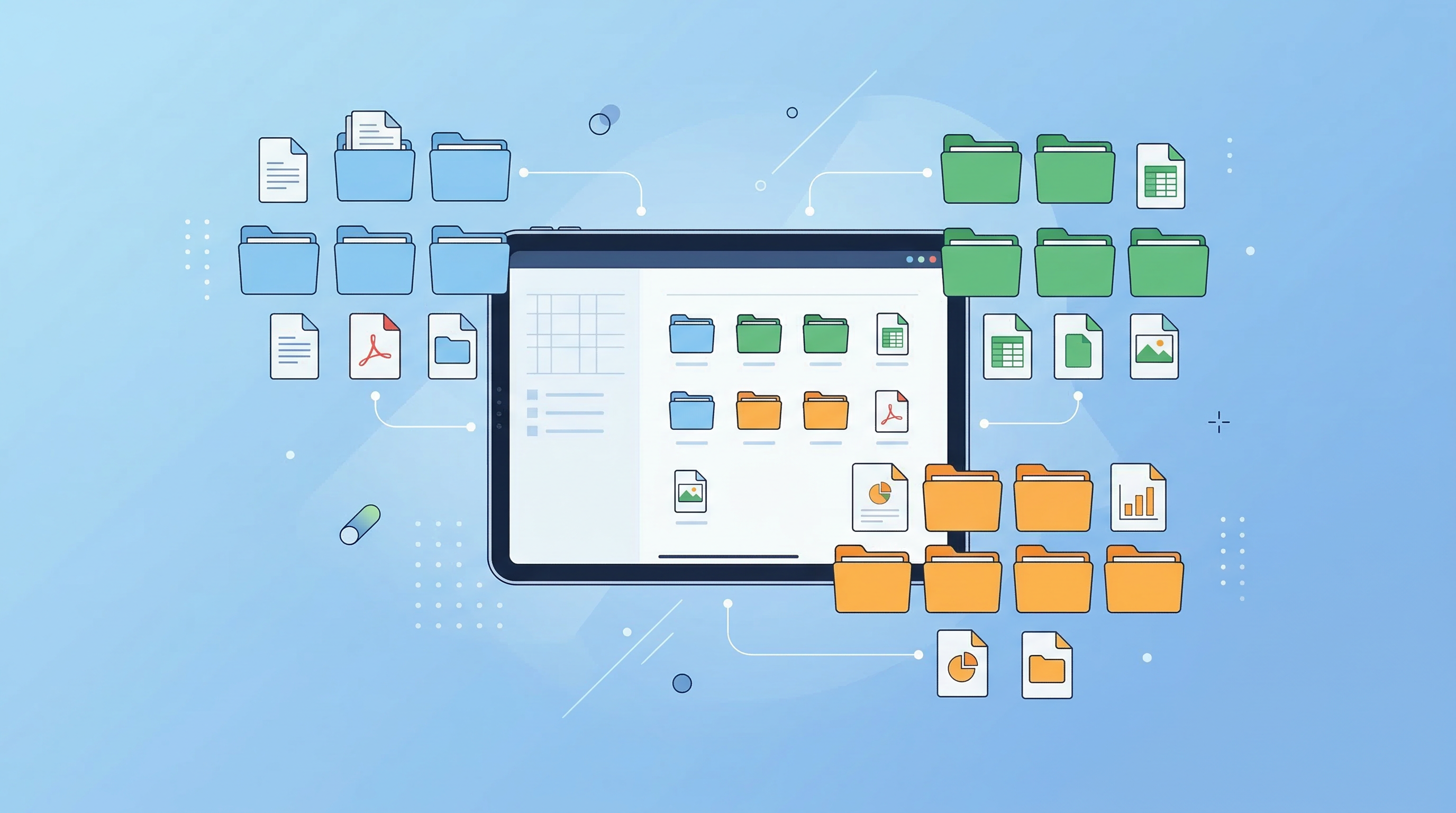
Finding a document should take seconds, not minutes. Yet most people's digital document storage is the equivalent of a physical filing cabinet where someone emptied a bag of papers — loosely sorted, inconsistently named, and impossible to navigate quickly.
Here are ten practical tips that actually work, whether you're managing a home archive, a freelance business, or a team.
Why Digital Document Organization Matters
Disorganized files cost real time. Research consistently shows that knowledge workers spend a significant portion of their week searching for files they know they have. Multiply that by a year, and poor organization is a substantial tax on your productivity.
The goal isn't a perfect system — it's a system you'll actually maintain.
Tip 1: Build a Folder Hierarchy That Mirrors Your Life
Start with broad categories, then drill down:
Documents/
├── Finance/
│   ├── Tax Returns/
│   ├── Bank Statements/
│   └── Invoices/
├── Legal/
│   ├── Contracts/
│   └── Identification/
├── Medical/
└── Work/
    ├── Clients/
    └── Projects/
The key is to create the structure first, then fill it. Don't let files accumulate in a Downloads folder and sort them "later."
Tip 2: Use Consistent File Naming Conventions
Names like "scan0047.pdf" and "final_FINAL_v3.docx" are useless. Use a consistent format:
Recommended: YYYY-MM-DD_Description_Source.pdf
Examples:
2026-03-15_Lease-Agreement_LandlordName.pdf2026-02-28_Invoice-#1042_ClientXYZ.pdf2026-01-20_Tax-Return-2025_IRS.pdf
Date-first naming sorts files chronologically by default in any file manager.
Tip 3: Scan Physical Documents Immediately
Paper documents you "plan to file" become piles. Establish a rule: any physical document that matters gets scanned the day it arrives.
A mobile scanner like PDF Scan Fast makes this genuinely fast — scan, name, file, and the physical document can be recycled or shredded (for non-originals). The whole process takes under two minutes.
Tip 4: Use OCR So Everything Is Searchable
Scanned documents are images unless you apply OCR (Optical Character Recognition). With OCR enabled, every word in every scanned document becomes searchable — meaning you can find "invoice from March 2026" across hundreds of files instantly.
PDF Scan Fast's OCR Text Export feature converts your scans into searchable PDFs, turning your archive into a proper database.
Tip 5: Create a Consistent Inbox Folder
Don't sort files during the capture moment — it slows you down and leads to inconsistent results. Instead:
- All new documents land in a single Inbox folder.
- Once a week (or twice), process the inbox: name, categorize, and move each file.
This "capture now, sort later" method is borrowed from productivity frameworks like GTD and works well for document management.
Tip 6: Set Expiry Dates for Temporary Documents
Not all documents need to be kept forever. Annotate or tag documents with a review date:
- Receipts for returnable items: keep until return window closes
- Utility bills: keep 12 months
- Tax documents: keep 7 years (US) / varies by country
- Contracts: keep for the duration + statute of limitations
Schedule a quarterly archive review to delete expired documents. Less clutter means faster search.
Tip 7: Back Up to Cloud Storage
A local-only document archive is one hard drive failure or theft away from total loss. Cloud backup is non-negotiable.
Options include:
- Google Drive — 15GB free, excellent search
- iCloud Drive — Tight Apple ecosystem integration
- Dropbox — Strong desktop sync
- In-app sync — Apps like PDF Scan Fast sync scans across devices automatically in the background
Redundancy matters for critical documents — keep a local copy and a cloud copy.
Tip 8: Use Smart Folders and Tags
Modern document apps support tags and smart folders that aggregate files by criteria rather than location. For example:
- A "2026 Tax" smart folder that includes all documents tagged
taxand2026 - A "Pending Signatures" tag for contracts awaiting action
Smart Folders in PDF Scan Fast automatically surface documents by type (receipts, IDs, invoices) using OCR-powered categorization — without you lifting a finger after the scan.
Tip 9: Digitize and Destroy (Responsibly)
Physical documents create clutter and fire risk. Once you've scanned and backed up a non-original document:
- Shred sensitive documents — bank statements, tax forms, anything with personal data
- Recycle non-sensitive paper — old receipts, utility bills, product manuals
- Keep original documents — passports, birth certificates, property deeds (but scan them too)
A shredder is a worthwhile investment if you're committing to a paperless system.
Tip 10: Review and Refine Quarterly
No system survives first contact with reality perfectly. Schedule a quarterly review:
- Are new documents getting filed correctly?
- Are the folder categories still relevant?
- Are there orphan files in the Inbox or Downloads?
- Are backups running successfully?
A 30-minute quarterly review prevents the entropy that turns organized archives back into chaos.
Building the Habit
Organization systems fail not because of bad design — they fail because they require too much friction. The best setup is the one you'll actually use consistently.
Start with Steps 1, 2, and 3. Get a solid folder structure, naming convention, and scan-immediately habit in place. The rest follows naturally.
A mobile scanner that lives on your phone, like PDF Scan Fast, removes the biggest friction point: the moment between "I have a document" and "it's filed and searchable." That gap is where most paper piles are born.
関連記事
How to Fax From Your Phone in 5 Minutes (2026 Guide)
No fax machine needed. Learn the fastest ways to fax from iPhone or Android, plus tips to send clean PDFs that won’t get rejected.
記事を読むHow to Scan a Document for Free (Phone, PC, and Without a Scanner) — 2026 Guide
Need to scan paperwork but don’t want to pay for an app or buy a scanner? Here are the fastest free ways to scan to PDF on iPhone, Android, Windows, and Mac—plus tips to make your scans look professional.
記事を読む