Going Paperless
The Complete Guide to Going Paperless in 2026
April 5, 202622 min read
<article>
<h1>The Complete Guide to Going Paperless in 2026: Everything You Need to Know</h1>
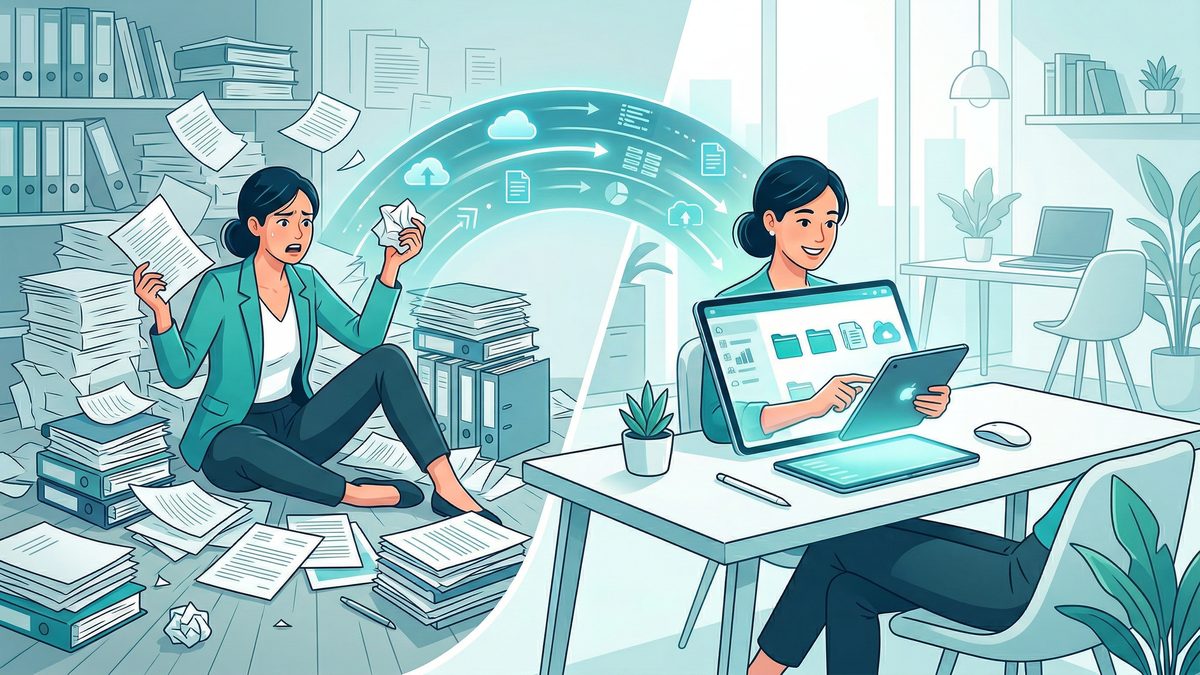
<p>Paper is expensive, slow, and fragile. A single water leak can destroy years of tax records. A misplaced contract can cost a deal. A pile of receipts can turn tax season into a nightmare. In 2026, there is no good reason to keep running your life or your business on paper — and every reason to switch.</p>
<p>This guide covers everything: why going paperless matters, how to scan every type of document, how to sign contracts digitally, how to stay organized, and how to keep your files secure. Whether you're a homeowner clearing out a filing cabinet or a freelancer trying to run a mobile business, this is the only guide you need.</p>
<p>By the end, you'll have a complete system — not just a vague intention to "scan more stuff."</p>
<hr />
<h2>1. Why Going Paperless Matters in 2026</h2>
<h3>The Environmental Case</h3>
<p>The average office worker uses around 10,000 sheets of paper per year. Globally, document printing accounts for roughly 1% of all greenhouse gas emissions. Going paperless isn't just convenient — it measurably reduces your environmental footprint. Less paper means fewer trees cut, less water consumed in pulp processing, and less ink waste in landfills.</p>
<p>At the household level, switching bills, bank statements, and receipts to digital formats eliminates hundreds of paper documents per year. That adds up fast.</p>
<h3>The Financial Case</h3>
<p>Paper costs money at every step: the paper itself, ink cartridges, printer maintenance, filing cabinets, and physical storage. Businesses spend an average of $20 in labor to file a single document and up to $120 to find a misfiled one. Going digital collapses all of those costs to near zero.</p>
<p>At home, <a href="/en/blog/go-paperless-at-home-save-money">going paperless can save hundreds of dollars per year</a> — between reduced printing costs, fewer late fees (because you actually see your bills), and eliminating the need for physical storage.</p>
<h3>The Efficiency Case</h3>
<p>Searching a physical filing cabinet takes minutes. Searching a digital folder takes seconds. With optical character recognition (OCR), you can search the <em>contents</em> of documents — not just their filenames. A document scanned today is findable forever, from any device, anywhere in the world.</p>
<p>In 2026, with hybrid work, frequent travel, and mobile-first workflows, the ability to access any document from your phone is not a luxury — it's a baseline expectation.</p>
<hr />
<h2>2. Getting Started: What You Actually Need</h2>
<p>The barrier to going paperless is lower than most people think. You don't need a flatbed scanner, a dedicated device, or expensive software. Here's the short list:</p>
<h3>A Smartphone</h3>
<p>Modern phone cameras — even mid-range Android devices — produce images with more than enough resolution for document scanning. The camera is your scanner. You already have it in your pocket.</p>
<h3>A Scanning App</h3>
<p>This is the single most important tool in your paperless workflow. A good scanning app automatically detects document edges, corrects perspective, adjusts contrast, and saves the result as a clean PDF. <a href="/en/blog/best-pdf-scanner-apps-iphone-android-2026">The best PDF scanner apps for iPhone and Android in 2026</a> go further — adding OCR, e-signature support, cloud sync, and batch scanning in one package.</p>
<p>PDF Scan Fast is built for exactly this workflow: fast, high-quality scans from your phone, with OCR and signature tools built in. It's free to start and works on both iOS and Android.</p>
<h3>Cloud Storage</h3>
<p>Google Drive, iCloud, Dropbox, or OneDrive — pick one and stick to it. Cloud storage gives you access from any device, automatic backup, and easy sharing. Most services offer free tiers that are more than sufficient for personal use.</p>
<h3>A Simple Folder Structure (More on This Later)</h3>
<p>Technology is only half the system. You also need a consistent naming and organization approach so files stay findable as the collection grows. We cover this in depth in Section 6.</p>
<hr />
<h2>3. Scanning Documents: How to Do It Right</h2>
<h3>The Basics of Phone Scanning</h3>
<p>Scanning with your phone is fast and produces excellent results if you follow a few simple rules. <a href="/en/blog/how-to-scan-documents-with-phone-2026">Here's how to scan any document with your phone in 2026</a>:</p>
<ul>
<li><strong>Use good lighting.</strong> Natural daylight is best. Avoid overhead lights that create shadows. If scanning at night, use two light sources to eliminate shadows from one side.</li>
<li><strong>Place the document flat.</strong> Wrinkles and curves create distortion that even smart perspective-correction can't fully fix.</li>
<li><strong>Shoot straight down.</strong> Hold the phone directly above the document, parallel to the surface. Angled shots require more correction and lose sharpness.</li>
<li><strong>Use auto-capture.</strong> Most scanning apps detect the document edges and capture automatically when you're aligned. This produces better results than tapping the shutter manually.</li>
<li><strong>Check the result.</strong> Zoom in on small text before saving. A 5-second check saves you from re-scanning later.</li>
</ul>
<h3>Tips for Specific Document Types</h3>
<p><strong>Receipts:</strong> Thermal receipt paper fades and curls. Scan receipts immediately after receiving them — and use high contrast mode if available. <a href="/en/blog/how-to-scan-receipts-tax-season-2026">Scanning receipts properly before tax season</a> can save hours of frustration in April.</p>
<p><strong>Books and textbooks:</strong> Press the spine flat gently. Scan two pages at a time if the app supports it. Modern cropping tools can split the two-page spread into separate files automatically.</p>
<p><strong>Business cards:</strong> These are small — use macro mode if available, and scan against a dark background for edge detection.</p>
<p><strong>Old photos:</strong> Place on a matte (non-glossy) surface. Turn off flash entirely — reflections destroy photo scans.</p>
<h3>Batch Scanning: Scanning Multiple Pages Into One PDF</h3>
<p>Multi-page scanning is where a dedicated app earns its keep over the built-in camera app. Good scanning apps let you scan each page in sequence and merge them automatically. <a href="/en/blog/scan-multiple-pages-into-one-pdf">How to scan multi-page documents into a single PDF</a> is one of the most useful skills for anyone going paperless — essential for contracts, reports, and any document longer than one page.</p>
<p>The workflow is simple: start a new scan session, scan each page in order, and export as a merged PDF. PDF Scan Fast handles this natively with unlimited pages per document.</p>
<h3>Sharing What You've Scanned</h3>
<p>Once scanned, you often need to share the document immediately — by email, WhatsApp, or uploading to a drive. <a href="/en/blog/scan-and-send-documents-from-phone">Scanning and sending documents from your phone</a> is a complete workflow: scan, rename, and share in under a minute.</p>
<hr />
<h2>4. E-Signatures: Sign Anything Without Printing</h2>
<h3>Are E-Signatures Legally Valid?</h3>
<p>Yes — in most jurisdictions, e-signatures have been legally valid for over two decades. In the United States, the ESIGN Act (2000) and UETA established e-signatures as legally equivalent to handwritten signatures for most contracts. The EU's eIDAS regulation does the same across Europe. In 2026, electronic signatures are accepted for employment contracts, NDAs, real estate agreements, client contracts, and most government forms.</p>
<p>The key question is not whether e-signatures are valid — they are. The question is whether specific high-stakes documents (like wills or real estate deeds in certain jurisdictions) require additional authentication steps. <a href="/en/blog/e-signatures-vs-wet-signatures-legal-validity-2026">The full breakdown of e-signatures vs. wet signatures and their legal validity in 2026</a> covers every major document type and jurisdiction.</p>
<h3>How to Sign a PDF on Your Phone</h3>
<p>You don't need a printer, a pen, or a scanner to sign a document. The entire process happens on your phone. <a href="/en/blog/how-to-sign-pdf-on-phone-without-printing">How to sign a PDF on your phone without printing</a> is straightforward with the right app:</p>
<ol>
<li>Open the PDF in your scanning or signature app.</li>
<li>Add a signature field (draw, type, or upload an image of your signature).</li>
<li>Place the signature on the correct page and position.</li>
<li>Save and share the signed PDF.</li>
</ol>
<p>PDF Scan Fast includes built-in signature tools so you can scan, sign, and send from a single app — no switching between tools required.</p>
<h3>When You Need a More Formal E-Signature</h3>
<p>For high-value contracts, consider a dedicated e-signature service like DocuSign or HelloSign, which provide audit trails, identity verification, and timestamped records. For everyday documents — client approvals, consent forms, personal agreements — a phone-based signature is fast and legally sufficient in most cases.</p>
<hr />
<h2>5. OCR Technology: Making Your Scans Searchable</h2>
<h3>What Is OCR?</h3>
<p>Optical Character Recognition (OCR) is the technology that converts a scanned image — essentially a photograph of text — into actual, searchable, copyable text. Without OCR, your scanned PDFs are just pictures. With OCR, they become fully searchable documents.</p>
<p><a href="/en/blog/ocr-technology-explained-how-phone-reads-text">How OCR works and why it matters</a>: the software analyzes each character in the image, compares it against known letterforms, and assigns a text value. Modern AI-powered OCR achieves accuracy rates above 99% on clean, well-lit documents — meaning even a phone scan of a printed document becomes a fully searchable file.</p>
<h3>Why OCR Matters for Your Paperless System</h3>
<p>Imagine you have 500 scanned PDFs and need to find the one contract that mentions "30-day termination notice." Without OCR, you'd have to open each file and read it. With OCR, you type the phrase into your search bar and find it in under a second.</p>
<p>OCR also enables:</p>
<ul>
<li><strong>Copy-paste from scans.</strong> Pull a policy number or address directly from a scanned insurance document.</li>
<li><strong>Automatic data extraction.</strong> Some tools read receipt amounts, dates, and vendor names automatically for expense tracking.</li>
<li><strong>Accessibility.</strong> Screen readers can process OCR'd documents — important for visually impaired users.</li>
</ul>
<p>Always use an app with built-in OCR. PDF Scan Fast applies OCR automatically on every scan, so your files are searchable from the moment they're saved.</p>
<hr />
<h2>6. Organizing Your Digital Files</h2>
<h3>The Naming Convention Problem</h3>
<p>Most people's digital document chaos starts with filenames like "Scan001.pdf" or "IMG_20260214_143201.jpg." A file you can't find is worse than no file at all.</p>
<p><a href="/en/blog/how-to-name-scanned-pdf-files">The right way to name scanned PDF files</a> follows a simple formula: <strong>Date – Category – Description</strong>. For example:</p>
<ul>
<li><code>2026-03-15_Tax_W2-Employer-Acme.pdf</code></li>
<li><code>2026-04-01_Medical_LabResults-BloodPanel.pdf</code></li>
<li><code>2026-02-28_Finance_BankStatement-Chase-Feb2026.pdf</code></li>
</ul>
<p>Starting with the date (in YYYY-MM-DD format) ensures files sort chronologically in any file browser. The category makes bulk filtering easy. The description makes the file identifiable at a glance.</p>
<h3>Folder Structure: Start Simple</h3>
<p><a href="/en/blog/organize-digital-documents-tips">Organizing digital documents like a pro</a> doesn't require a complex hierarchy. A flat, consistent structure beats a deep, elaborate one you never maintain. A solid starting point:</p>
<pre>
Documents/
├── Finance/
│ ├── Tax/
│ ├── Banking/
│ └── Receipts/
├── Medical/
├── Legal/
├── Home/
│ ├── Insurance/
│ └── Utilities/
└── Work/
├── Contracts/
└── Invoices/
</pre>
<p>Whatever structure you choose, the key rule is: <strong>one document goes in one place, always.</strong> Avoid duplicates across folders — they create confusion and bloat storage.</p>
<h3>Tags and Search</h3>
<p>If your cloud storage supports tags (Google Drive labels, macOS tags, Notion databases), use them as a second layer of organization. Tags let a document belong to multiple categories without duplication. A tax receipt can be tagged both "2025 Taxes" and "Business Expenses" without sitting in two folders.</p>
<hr />
<h2>7. Document Security: Protecting Your Digital Files</h2>
<h3>Why Digital Document Security Matters</h3>
<p>A paper document can only be stolen by someone who physically accesses it. A digital document, if unsecured, can be accessed from anywhere. <a href="/en/blog/document-security-mobile-guide">The complete guide to document security on mobile</a> covers every layer of protection you need:</p>
<h3>Password Protection</h3>
<p>Most PDF tools let you add a password to individual files. Use this for documents containing sensitive information — Social Security numbers, bank account details, medical records. A password-protected PDF is encrypted and unreadable without the correct credentials.</p>
<p>Use a password manager (1Password, Bitwarden, or similar) to generate and store strong, unique passwords for each protected document. Never use the same password across multiple sensitive files.</p>
<h3>Secure Cloud Storage</h3>
<p>Major cloud storage providers (Google Drive, iCloud, OneDrive, Dropbox) encrypt data at rest and in transit. For an additional layer of security, consider end-to-end encrypted services like Proton Drive or Tresorit for your most sensitive documents.</p>
<p>Enable two-factor authentication on every cloud account. This single step prevents the vast majority of unauthorized access attempts.</p>
<h3>Secure Sharing</h3>
<p>When sharing documents, use link-based sharing with expiry dates rather than email attachments when possible. Set view-only permissions for documents you don't want modified. Avoid sharing sensitive documents over unencrypted channels — WhatsApp offers end-to-end encryption; standard email does not.</p>
<h3>Device Security</h3>
<p>Your phone is your scanner and your file cabinet. Protect it: use a strong PIN or biometric lock, enable remote wipe, and keep the OS updated. A lost phone without a lock screen is a data breach.</p>
<hr />
<h2>8. Going Paperless at Home</h2>
<p>The home is the easiest place to start going paperless because you control everything. Here's a category-by-category breakdown:</p>
<h3>Bills and Statements</h3>
<p>Switch every recurring bill to paperless delivery immediately: utilities, credit cards, bank statements, insurance. This stops the inflow of new paper. For existing paper statements, scan the last three years and shred the originals.</p>
<h3>Receipts</h3>
<p>Develop a same-day habit: scan receipts before they go in your pocket or wallet. <a href="/en/blog/how-to-scan-receipts-tax-season-2026">Scanning receipts throughout the year</a> — not just at tax time — makes expense tracking and tax preparation dramatically easier. Store them in a dated folder by year.</p>
<h3>Medical Records</h3>
<p>Scan EOBs (Explanation of Benefits), lab results, vaccination records, and prescription information. Medical records are often needed urgently and unexpectedly — having them on your phone means you're always prepared at a doctor's visit or emergency room.</p>
<h3>Tax Documents</h3>
<p>W-2s, 1099s, donation receipts, mortgage statements — scan everything as it arrives each tax season. Keep digital copies for at least seven years (the IRS audit window). A searchable, organized digital tax archive is one of the highest-value outcomes of a paperless system. Refer to <a href="/en/blog/document-retention-small-business-how-long-to-keep-records">document retention guidelines</a> to know exactly how long to keep each type of record.</p>
<h3>Home Records</h3>
<p>Appliance manuals, warranty cards, home improvement receipts, and lease agreements. These are rarely needed — but when you need them, you really need them. A scanned archive takes up zero physical space.</p>
<hr />
<h2>9. Going Paperless at Work</h2>
<h3>Contracts and Agreements</h3>
<p>Sign digitally whenever possible. For incoming paper contracts, scan immediately upon signing and file in a dedicated contracts folder. Include the counterparty name and effective date in the filename.</p>
<h3>Invoices</h3>
<p>Send invoices as PDFs instead of paper. Scan any paper invoices you receive. Most accounting software (QuickBooks, FreshBooks, Wave) accepts PDF uploads directly — eliminating manual data entry if OCR is used.</p>
<h3>Business Cards</h3>
<p>The physical business card is essentially dead in 2026. But you'll still receive them at conferences and meetings. Scan them immediately with your phone's scanning app, then log the contact in your CRM or address book. Discard the physical card.</p>
<h3>Meeting Notes</h3>
<p>If you take handwritten notes, scan them at the end of every meeting. With OCR, even handwriting (in clear block letters) becomes partially searchable. The best approach: scan your handwritten notes and link them to the calendar event or project file they belong to.</p>
<h3>Compliance and Retention</h3>
<p>Businesses have legal obligations around document retention — how long to keep contracts, payroll records, tax filings, and correspondence. <a href="/en/blog/document-retention-small-business-how-long-to-keep-records">Document retention requirements for small businesses</a> vary by jurisdiction and document type, but seven years is a safe default for most financial records. Going paperless makes compliance easier — digital records don't degrade, take up no physical space, and can be backed up automatically.</p>
<hr />
<h2>10. Specific Use Cases</h2>
<h3>Freelancers</h3>
<p>Freelancers are among the biggest beneficiaries of going paperless. <a href="/en/blog/freelancer-mobile-document-scanner">Why every freelancer needs a mobile document scanner</a>: contracts with clients, invoices, expense receipts, and 1099 forms all need to be tracked meticulously for tax purposes. A mobile-first paperless system lets you handle all of this from wherever you're working — the coffee shop, a client's office, or your home studio.</p>
<p>Key documents for freelancers to digitize:</p>
<ul>
<li>Client contracts and signed agreements</li>
<li>Project invoices and payment receipts</li>
<li>Business expense receipts (home office, equipment, travel)</li>
<li>Quarterly tax payment confirmations</li>
<li>Business registration and licensing documents</li>
</ul>
<h3>Real Estate Agents</h3>
<p>Real estate is one of the most paper-intensive industries — or it was. Purchase agreements, disclosure forms, inspection reports, mortgage documents, and closing packages can run to hundreds of pages. Digital workflows using mobile scanning and e-signatures cut transaction time dramatically. Every showing, every listing, every offer can be handled entirely on a phone.</p>
<h3>Students</h3>
<p><a href="/en/blog/students-guide-scanning-notes-textbooks">Students have much to gain from mobile scanning</a>: class notes, textbook pages, handouts, lab reports, and research papers can all be digitized and organized by course and semester. A digital note library is searchable and lasts indefinitely — no more losing notebooks or dog-earing pages.</p>
<p>Pro tip for students: scan lecture slides if printed handouts are provided. Add your handwritten annotations digitally using a PDF annotation app.</p>
<h3>Healthcare Professionals</h3>
<p>Patient consent forms, referral letters, insurance authorizations, and lab results. Healthcare has stringent document requirements — HIPAA in the US requires specific security controls for digitized patient information. If you're digitizing protected health information professionally, use HIPAA-compliant tools and storage.</p>
<h3>Small Business Owners</h3>
<p>For small businesses, going paperless isn't just a productivity upgrade — it's a compliance and risk management decision. Digital records are easier to back up, harder to lose, and simpler to produce during an audit. Understanding <a href="/en/blog/document-retention-small-business-how-long-to-keep-records">how long to keep business records</a> helps you build a system that meets legal requirements without unnecessary clutter.</p>
<hr />
<h2>11. Common Mistakes to Avoid</h2>
<h3>Scanning Without Organizing</h3>
<p>The most common failure mode: you scan everything enthusiastically, then dump it all in one folder with auto-generated filenames. Six months later, you have 800 files named "Scan001.pdf" through "Scan800.pdf" and no idea what's in any of them. Organize as you go — naming and filing each document takes 15 seconds and saves hours later.</p>
<h3>No Backup</h3>
<p>One copy is no copy. If your phone breaks and your files aren't backed up to the cloud, everything is lost. Use automatic cloud sync so every scan is backed up the moment it's taken. Set up a second backup (external drive, second cloud service) for your most critical documents.</p>
<h3>Inconsistent Naming</h3>
<p>Switching between naming conventions halfway through destroys searchability. Decide on a naming format before you start and stick to it forever. If you change your convention later, rename old files in bulk using a tool like Bulk Rename Utility or macOS Automator.</p>
<h3>Scanning Poor-Quality Images</h3>
<p>Blurry, dark, or skewed scans are not a replacement for the original document. If you scan a document poorly and then discard the original, you may end up with an unreadable file. Always check quality before discarding originals for important documents.</p>
<h3>Forgetting to Update the System</h3>
<p>A paperless system only works if you maintain it. Set a weekly 10-minute "inbox zero" habit: scan anything that arrived as paper that week, file it, and shred the originals. This keeps the backlog from accumulating.</p>
<h3>Ignoring Metadata</h3>
<p>Beyond the filename, PDF metadata (author, creation date, keywords) adds another layer of searchability. Some scanning apps and PDF editors let you set this — it's worth using for important documents.</p>
<hr />
<h2>12. Tools and Apps: Building Your Paperless Stack</h2>
<h3>The Core Tool: PDF Scan Fast</h3>
<p>For mobile scanning, PDF Scan Fast is built specifically for the workflows covered in this guide. It handles every core task in one app:</p>
<ul>
<li><strong>Scanning:</strong> Auto-edge detection, perspective correction, contrast optimization</li>
<li><strong>Batch scanning:</strong> Unlimited pages per PDF document</li>
<li><strong>OCR:</strong> Applied automatically on every scan for searchable PDFs</li>
<li><strong>E-signatures:</strong> Draw, type, or upload your signature and apply it to any PDF</li>
<li><strong>Cloud sync:</strong> Direct export to Google Drive, Dropbox, iCloud, and email</li>
<li><strong>Security:</strong> Password protection for sensitive documents</li>
</ul>
<p>PDF Scan Fast is available on iOS and Android, free to start. It's the foundation of a mobile-first paperless workflow.</p>
<h3>Cloud Storage</h3>
<ul>
<li><strong>Google Drive:</strong> Best for collaboration and integration with Google Docs/Sheets. 15 GB free.</li>
<li><strong>iCloud Drive:</strong> Seamless on Apple devices. 5 GB free.</li>
<li><strong>Dropbox:</strong> Cross-platform, excellent desktop integration. 2 GB free.</li>
<li><strong>OneDrive:</strong> Best for Microsoft 365 users. 5 GB free.</li>
</ul>
<h3>E-Signature Tools</h3>
<ul>
<li><strong>PDF Scan Fast:</strong> Built-in, ideal for everyday signing on the go</li>
<li><strong>DocuSign:</strong> Industry standard for formal business contracts with audit trails</li>
<li><strong>Adobe Acrobat Sign:</strong> Deep PDF editing capabilities alongside signatures</li>
<li><strong>HelloSign (Dropbox Sign):</strong> User-friendly, integrated with Dropbox</li>
</ul>
<h3>OCR and Search</h3>
<ul>
<li><strong>PDF Scan Fast:</strong> Automatic OCR on every scan</li>
<li><strong>Adobe Acrobat:</strong> High-accuracy OCR with extensive editing tools</li>
<li><strong>DEVONthink (Mac):</strong> Powerful local document management with AI-assisted search</li>
</ul>
<h3>Password Managers</h3>
<ul>
<li><strong>1Password:</strong> Best-in-class, cross-platform</li>
<li><strong>Bitwarden:</strong> Open-source, free tier is excellent</li>
<li><strong>Apple Keychain:</strong> Seamless on Apple devices, good for basic use</li>
</ul>
<hr />
<h2>13. The Environmental Impact: Numbers That Matter</h2>
<p>Going paperless isn't just personally efficient — the environmental gains at scale are significant. To put the impact in perspective:</p>
<ul>
<li>The average tree produces roughly 8,333 sheets of paper. An office worker using 10,000 sheets per year consumes more than one tree annually — just for printing.</li>
<li>Paper manufacturing is the fourth largest industrial contributor to greenhouse gas emissions globally.</li>
<li>Recycling paper requires 70% less energy than producing it from virgin pulp — but eliminating the paper entirely is even better.</li>
<li>Electronic documents stored in efficient data centers have a fraction of the carbon footprint of equivalent paper documents over a 10-year period.</li>
</ul>
<p>At the individual level, these numbers may seem abstract. But if every household in a city of one million switched their utility bills, bank statements, and tax documents to digital, the aggregate paper reduction runs into the tens of millions of sheets per year. Multiply that across countries and industries, and the impact is substantial.</p>
<p>The paperless transition also reduces demand for physical office space (less need for filing cabinets and storage rooms), cuts the energy used by printers and fax machines, and reduces ink cartridge waste — most of which ends up in landfill.</p>
<hr />
<h2>14. Maintaining Your Paperless System Long-Term</h2>
<h3>The Weekly Scan Habit</h3>
<p>The biggest threat to any paperless system is letting paper accumulate unchecked. Designate a specific time each week — Sunday evening, Friday afternoon — to scan anything that arrived during the week. Ten minutes of consistent effort prevents the three-hour catch-up sessions that kill motivation.</p>
<h3>Annual Archive Reviews</h3>
<p>Once a year, review your document archive. Delete duplicates, rename files that were mislabeled, and move time-sensitive documents (like expiring contracts) to an archive folder. Refer to <a href="/en/blog/document-retention-small-business-how-long-to-keep-records">document retention guidelines</a> to confidently purge records you no longer need to keep.</p>
<h3>Testing Your Backups</h3>
<p>A backup you've never tested is not a backup — it's a hope. Every six months, download a random document from your cloud backup and verify it opens correctly. Confirm your second backup is current. This takes five minutes and gives you genuine confidence in your system.</p>
<h3>Staying Current With Apps</h3>
<p>PDF scanning and OCR technology improves rapidly. Keep your scanning app updated to benefit from improved accuracy, new file format support, and security patches. PDF Scan Fast releases regular updates with enhanced OCR models and new features — staying current ensures you're always working with the best available tools.</p>
<h3>Onboarding Others</h3>
<p>If you share a home or run a small team, your paperless system only works if everyone participates. Create a one-page cheat sheet with your naming convention, folder structure, and scanning workflow. The simpler the system, the easier it is to train others to follow it consistently.</p>
<hr />
<h2>Your Paperless Action Plan: Where to Start</h2>
<p>Going paperless doesn't need to happen in a weekend. Start with the highest-impact steps and build from there:</p>
<ol>
<li><strong>Download PDF Scan Fast</strong> on your phone today. Run your first scan before you finish reading this.</li>
<li><strong>Switch to paperless billing</strong> for every account that offers it. This stops new paper from arriving immediately.</li>
<li><strong>Set up a cloud folder structure</strong> using the template in Section 6. Don't overcomplicate it.</li>
<li><strong>Scan your most important documents first:</strong> passports, insurance cards, tax records, key contracts. These are the documents you'd be devastated to lose.</li>
<li><strong>Build the weekly 10-minute habit:</strong> scan, file, and shred anything that arrived that week.</li>
<li><strong>Add e-signatures to your workflow:</strong> the next time someone sends you a contract, sign it on your phone instead of printing it.</li>
</ol>
<p>Going paperless is a system, not a single action. But the system is simpler than most people expect — and the payoff in time, money, and peace of mind is immediate.</p>
<p>The goal isn't a perfectly organized digital library on day one. The goal is to never generate a new pile of paper again, and to gradually digitize what already exists. Start today, and in three months you'll look back at the paper pile you used to maintain and wonder why you waited so long.</p>
<hr />
<h2>Frequently Asked Questions</h2>
<h3>Is it safe to throw away original documents after scanning?</h3>
<p>For most documents, yes — especially bills, bank statements, and receipts. For originals with special legal status (signed original contracts where wet signatures are specified, government-issued IDs, property deeds), check with a legal professional before discarding. Always shred (don't just bin) documents containing personal information.</p>
<h3>How much storage do I need for a paperless system?</h3>
<p>A typical scanned PDF page runs 100–300 KB with OCR. Even if you scan 1,000 documents per year at 5 pages each, that's roughly 1.5 GB annually. Most free cloud tiers easily handle a personal paperless archive for years.</p>
<h3>What happens to my digital documents if a cloud service shuts down?</h3>
<p>This is why the two-backup rule matters. Keep your primary archive in one cloud service and a copy in a second location (another cloud service or a local drive). Major services like Google and Apple are unlikely to disappear overnight, but migration tools exist if they do.</p>
<h3>Can I go fully paperless if my employer still requires paper?</h3>
<p>You can go paperless on your end even if you receive paper from others. Scan everything they give you, digitize your outgoing documents, and keep the originals only as long as required. Over time, advocate for digital workflows — most organizations are receptive when the efficiency case is made clearly.</p>
<h3>How do I handle documents that require original signatures by law?</h3>
<p>Some documents — certain real estate transactions, wills, and powers of attorney — may require notarized wet signatures in your jurisdiction. For these, keep the original and scan a copy for reference. Check local regulations, as many jurisdictions are expanding acceptance of e-signatures for these documents as well.</p>
</article>
Try PDF Scan Fast Free
Scan, sign, and organize your documents in seconds. Available on iOS and Android.
Related Articles
Productivity
How to Fax From Your Phone in 5 Minutes (2026 Guide)
No fax machine needed. Learn the fastest ways to fax from iPhone or Android, plus tips to send clean PDFs that won’t get rejected.
Read articleScanning Tips
How to Scan a Document for Free (Phone, PC, and Without a Scanner) — 2026 Guide
Need to scan paperwork but don’t want to pay for an app or buy a scanner? Here are the fastest free ways to scan to PDF on iPhone, Android, Windows, and Mac—plus tips to make your scans look professional.
Read article