Scan Multiple Pages Into One PDF (iPhone & Android) in Under 60 Seconds
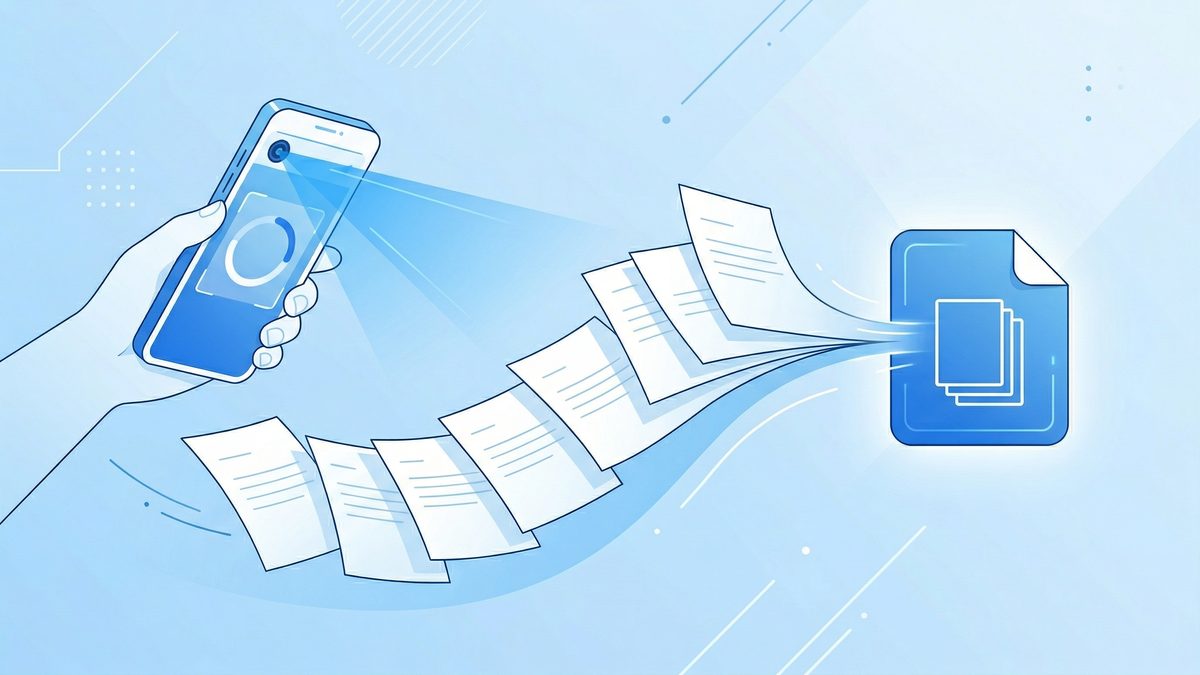
If you have ever tried to scan a packet, lease, homework, or medical forms — or even a stack of receipts for tax season — from your phone, you know the pain: you capture one page, save it, then repeat… and you end up with a dozen separate files.
The better workflow is to scan multiple pages into one PDF. It is faster, easier to share, and much more professional.
In this guide you will learn exactly how to scan multi-page documents into a single PDF on iPhone and Android, how to avoid common quality issues, and how to keep everything organized once you are done.
Why scan multiple pages into one PDF?
A single PDF is almost always the preferred format for multi-page documents because it:
- Keeps pages in order (no missing “page 7”).
- Uploads cleanly to portals (banks, schools, HR, insurance).
- Looks professional when emailing clients.
- Is easier to store and search later (especially with OCR).
If you regularly handle paperwork, this one habit saves real time. Freelancers in particular will find multi-page scanning essential for contracts, proposals, and client agreements.
Before you start: prep your pages for a cleaner scan
A few seconds of prep improves scan quality dramatically.
Quick checklist
- Flatten folds and remove staples or paper clips.
- Use bright, even lighting (window light is great).
- Place pages on a dark, non-reflective surface.
- Keep the phone lens clean.
Aim for consistency
When scanning a stack, try to keep:
- The same page orientation (portrait vs landscape)
- Similar distance from the page
- Similar lighting
This reduces warping and makes the final PDF easier to read.
How to scan multiple pages into one PDF on iPhone
There are three common options on iPhone: the Files app, Notes app, or a dedicated scanner app.
Option 1: Scan with the Notes app (built-in)
- Open Notes.
- Create a new note (or open an existing one).
- Tap the camera icon → Scan Documents.
- Point your camera at the page.
- Let it auto-capture (or press the shutter).
- Tap Keep Scan.
- Tap + to add the next page.
- When finished, tap Save.
- Tap the scanned document in the note → share/export as PDF.
Best for: quick scanning when you do not need advanced cleanup.
Option 2: Scan with the Files app (built-in)
- Open Files.
- Choose a folder (for example: iCloud Drive → Scans).
- Tap … (three dots) → Scan Documents.
- Capture each page; tap + to keep adding pages.
- Tap Save.
Files saves the scan directly to the folder you selected, which is handy for staying organized.
Option 3: Use a scanner app for faster multi-page workflows
If you scan often (contracts, receipts, school packets), a dedicated scanner app is usually quicker and gives you better control: retake a page, reorder pages, adjust contrast, and run OCR.
PDF Scan Fast is designed for this multi-page flow: you can capture page after page, auto-crop, straighten, and export one clean PDF when you are done—without juggling separate files.
How to scan multiple pages into one PDF on Android
Android steps vary by manufacturer, but you have a few reliable paths.
Option 1: Google Drive scan (widely available)
- Open Google Drive.
- Tap + → Scan (sometimes shown as a camera).
- Capture the page.
- Tap + (Add) to scan the next page.
- When finished, tap Save.
Google Drive typically saves scans as a PDF and supports multi-page capture.
Option 2: Manufacturer camera “document scan” modes
Some Android phones (Samsung, Pixel, Xiaomi) include a document scan mode in the camera app or gallery.
Look for:
- “Document” in camera modes
- “Scan” suggestions when the camera detects a page
The key is to ensure it offers Add page before saving.
Option 3: Use a scanner app for consistent results
If your built-in options are inconsistent, a scanner app makes the experience predictable across devices. With PDF Scan Fast, the multi-page scan workflow stays the same whether you are on iPhone or Android, which is useful for teams and families.
Step-by-step: create one PDF from a stack of pages (best-practice workflow)
No matter what tool you use, this workflow gives the best results.
1) Capture pages in order
Scan pages in the same order you would read them. If you accidentally scan out of order, do not worry—most scanner tools let you reorder before exporting.
2) Review each page as you go
After each capture, check:
- Is the page cut off?
- Is it blurry?
- Is there glare?
If yes, retake immediately. Fixing a bad page later is slower.
3) Reorder, rotate, or delete mistakes
Before exporting, use the thumbnail view to:
- Drag pages into the correct order
- Rotate a sideways page
- Delete a duplicate or accidental shot
4) Apply a readable filter
Most tools offer filters like Color, Grayscale, or Black & White.
- Color: best for forms with highlights or stamps
- Grayscale: good general-purpose
- Black & White: best for crisp text and smaller file sizes
Choose the one that keeps text sharp without losing faint print.
5) Turn on OCR (searchable text) when possible
OCR (Optical Character Recognition) converts images of text into selectable/searchable text.
Why it matters:
- You can search inside the PDF for names, addresses, invoice numbers
- Copy/paste text instead of retyping
- Better accessibility
If you use PDF Scan Fast, enable OCR for important documents so future-you can find them instantly.
6) Export as one PDF (not separate images)
This is the crucial step. Make sure your export/share option says PDF and that it produces one file.
Name the file clearly using a consistent convention (example: Lease_123MainSt_Signed_2026-04-02.pdf).
Common problems (and quick fixes)
Problem: Pages are crooked or warped
Fix: Rescan on a flat surface and keep the camera directly above the page. Use auto-straightening if available.
Problem: Shadows on the edges
Fix: Move the page closer to the light source, or avoid overhead lights that cast a phone shadow. Window light from the side often works best.
Problem: Text looks fuzzy
Fix: Wipe the camera lens, hold the phone steady, and make sure autofocus locks before capturing.
Problem: The PDF file is huge
Fix: Use grayscale/black-and-white, reduce resolution if your app allows it, and avoid scanning in full color unless needed.
Problem: Pages exported as separate files
Fix: Look for “Combine,” “Multi-page,” “Add page,” or “Export as PDF” options. In a dedicated scanner app, multi-page capture is usually a default.
Organization tips after you scan
Scanning is only half the battle. Here is how to keep your digital documents tidy.
Use a simple folder system
Try something like:
Personal/Work/Taxes/2026/Medical/Home/
Standardize file names
A consistent pattern makes search and sorting easier.
Example formula:
Type_ClientOrTopic_Identifier_YYYY-MM-DD.pdf
Back up automatically
If the document matters, make sure it exists in at least two places (for example: phone + cloud drive). See our mobile document security guide for best practices on protecting backed-up files.
When to use PDF Scan Fast for multi-page scanning
Built-in scanning is fine for occasional use. But if you scan frequently, PDF Scan Fast can save time by:
- Speeding up capture for multi-page packets
- Auto-cropping and straightening
- Letting you reorder pages easily
- Creating one clean PDF ready to share
It is a simple way to go paperless without changing your whole workflow.
FAQ: multi-page scanning to one PDF
Can I combine pages after scanning?
Often yes. Some tools let you merge multiple PDFs or images into one PDF after the fact. But it is usually faster to scan as a multi-page document from the start.
What is the best format for submitting multi-page documents?
Most portals prefer one PDF rather than multiple images, because it keeps everything together and is easy to archive.
Should I scan in color or black and white?
Use black and white for text-heavy documents and smaller files. Use color when you need to preserve stamps, highlights, or colored graphs.
Ready to scan a stack in minutes?
If you want a faster way to scan multiple pages into one PDF, try PDF Scan Fast. Capture your pages, review them, and export one professional PDF you can send anywhere.
CTA: Open PDF Scan Fast and scan your next packet in one go—then share a single clean PDF instead of a pile of photos.
Related Reading
Try PDF Scan Fast Free
Scan, sign, and organize your documents in seconds. Available on iOS and Android.
Related Articles
How to Fax From Your Phone in 5 Minutes (2026 Guide)
No fax machine needed. Learn the fastest ways to fax from iPhone or Android, plus tips to send clean PDFs that won’t get rejected.
Read articleHow to Scan a Document for Free (Phone, PC, and Without a Scanner) — 2026 Guide
Need to scan paperwork but don’t want to pay for an app or buy a scanner? Here are the fastest free ways to scan to PDF on iPhone, Android, Windows, and Mac—plus tips to make your scans look professional.
Read article