The Ultimate Guide to Document Security on Mobile
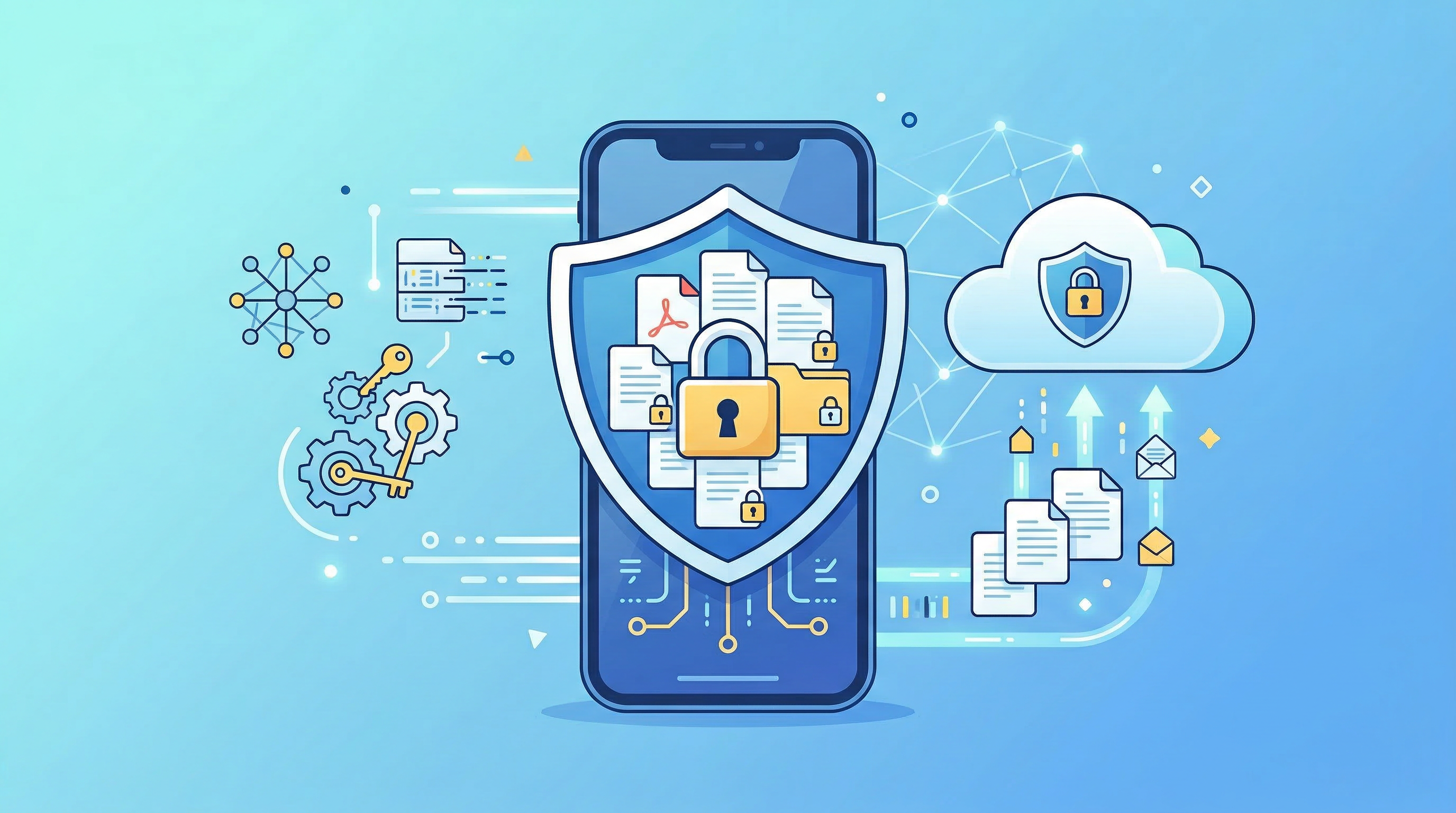
Your phone is now the most sensitive digital device you own. It holds your banking app, your emails, your passwords — and increasingly, your most important documents: signed contracts, scanned IDs, tax returns, medical records.
The same convenience that makes mobile document management useful also creates risk if security isn't taken seriously. This guide covers practical steps to protect your documents on mobile without making your workflow painful.
Why Mobile Document Security Matters
Consider what a complete stranger could access if they picked up your unlocked phone right now:
- Scanned copies of your passport or driver's license
- Signed contracts with financial obligations
- Tax documents showing income and personal information
- Medical records or insurance cards
- Bank statements
This is valuable data for identity theft, fraud, and social engineering attacks. Mobile security isn't paranoia — it's proportionate risk management.
Layer 1: Device Security (The Foundation)
All document security on mobile starts at the device level.
Screen Lock and Biometrics
- Enable face ID or fingerprint unlock. A 6-digit PIN is significantly more secure than a 4-digit one, and biometric authentication is more secure still.
- Set auto-lock to 30 seconds or 1 minute. A screen that locks quickly limits the window of physical access.
- Never use pattern locks if your screen is visible to others — patterns leave grease trails on the screen.
Operating System Updates
Keep your device OS updated. Security patches are the primary mechanism for fixing vulnerabilities that could allow unauthorized access to your data. In 2026, both iOS and Android push security updates regularly — enable automatic updates.
App Updates
Apps, including document scanners, receive security updates. Enable automatic app updates or check manually monthly.
Layer 2: App-Level Security
Choosing a secure scanner app matters as much as your device security.
What to Look For in a Secure Scanner App
- No unnecessary permissions — A scanner app needs camera access. It doesn't need access to your contacts, microphone, or call logs. Review permissions before granting them.
- Data processing transparency — Where does the app process your documents? On-device processing is more private than cloud-processing because your document content doesn't leave your phone.
- Cloud storage with encryption — If the app syncs to cloud storage, it should use encryption in transit (TLS) and at rest. Look for apps that are clear about their data handling practices.
- No data selling — Read the privacy policy. Some free apps monetize by analyzing your document data. This is a significant red flag for sensitive documents.
PDF Scan Fast processes documents on-device and uses encrypted cloud sync — your document content stays private.
App Lock / PIN Protection
Some scanner apps allow you to add a PIN or biometric lock within the app itself, adding a second layer of protection even if your phone screen is unlocked. Enable this for apps containing highly sensitive documents.
Layer 3: Cloud Storage Security
Most scanning apps sync to cloud storage for backup and cross-device access. Security considerations:
Use Two-Factor Authentication on Cloud Accounts
Whether your scans sync to Google Drive, iCloud, Dropbox, or an app's proprietary cloud, enable 2FA on the account. This means a stolen password alone isn't enough to access your documents.
Know Where Your Data Lives
Different regions have different data privacy laws. EU users benefit from GDPR protections — cloud services operating in the EU must meet strict data handling standards. Verify that your scanning app's cloud storage is compliant with regulations relevant to your location.
Avoid Public Wi-Fi for Document Operations
Uploading or downloading sensitive documents over unsecured public Wi-Fi exposes the transmission to interception. Use cellular data or a VPN when syncing documents outside of trusted networks.
Layer 4: Document-Level Security
For particularly sensitive documents, consider document-level protection in addition to device and app security.
PDF Encryption and Password Protection
Sensitive PDFs can be password-protected so that even if someone gains access to the file, they cannot open it without the password. This is appropriate for:
- Signed contracts you're sharing via email
- Tax documents shared with an accountant
- Medical records sent to a healthcare provider
When sharing a password-protected PDF, send the password via a different channel (text message vs. email) so that a compromised email account doesn't expose both.
Redaction for Sharing
When sharing a document that contains sensitive information alongside the content that needs to be shared, redact the sensitive portions. For example, if sharing a bank statement to verify an address, redact account numbers and transaction details.
Layer 5: Sharing Security
How you share documents is as important as how you store them.
Secure Sharing Practices
- Use expiring links when available — some cloud services let you share a link that automatically expires after a set period.
- Share as PDF, not editable formats — PDFs are harder to modify than Word documents.
- Avoid email for highly sensitive documents — Email is not encrypted by default. For very sensitive documents, use an encrypted file sharing service.
- Confirm recipient identity before sending sensitive documents. A typo in an email address sends your tax return to a stranger.
Layer 6: What to Do If Your Phone Is Lost or Stolen
Preparation before a loss makes recovery manageable:
- Enable Find My (iOS) or Find My Device (Android) — Allows remote location, lock, and wipe.
- Know how to remotely wipe your device — If recovery seems unlikely, remotely wipe before your data is accessed.
- Have a cloud backup of critical documents — If you wipe the device, your documents should already be safely backed up.
- Change passwords immediately on accounts linked to the device.
- Notify relevant parties if documents containing financial or legal information may have been accessed.
Practical Security Checklist
Use this checklist to audit your current setup:
- [ ] Screen lock enabled with biometrics
- [ ] Auto-lock set to ≤1 minute
- [ ] OS and apps updated
- [ ] Scanner app permissions reviewed
- [ ] 2FA enabled on cloud storage accounts
- [ ] Backups confirmed and working
- [ ] Sensitive shared documents password-protected
- [ ] Remote wipe enabled
Going through this list once takes about 20 minutes. The protection it provides is ongoing.
Security Without Sacrifice
Document security on mobile doesn't require choosing between convenience and protection. The steps above — strong device lock, a trustworthy app, encrypted cloud sync, and good sharing habits — provide robust protection without meaningfully slowing down your workflow.
PDF Scan Fast's encrypted cloud sync and on-device processing give you the convenience of mobile document management with the security posture that sensitive documents require. Set it up once, and your document archive stays protected automatically.
Try PDF Scan Fast Free
Scan, sign, and organize your documents in seconds. Available on iOS and Android.
Related Articles
How to Scan Documents with Your Phone in 2026
Learn the fastest ways to scan any document with your iPhone or Android in 2026. No flatbed scanner needed — just your phone camera.
Read article
E-Signatures vs Wet Signatures: Legal Validity in 2026
Are e-signatures as legally valid as handwritten ones in 2026? Understand the law, best practices, and when each type applies.
Read article