How to Scan Documents with Your Phone in 2026
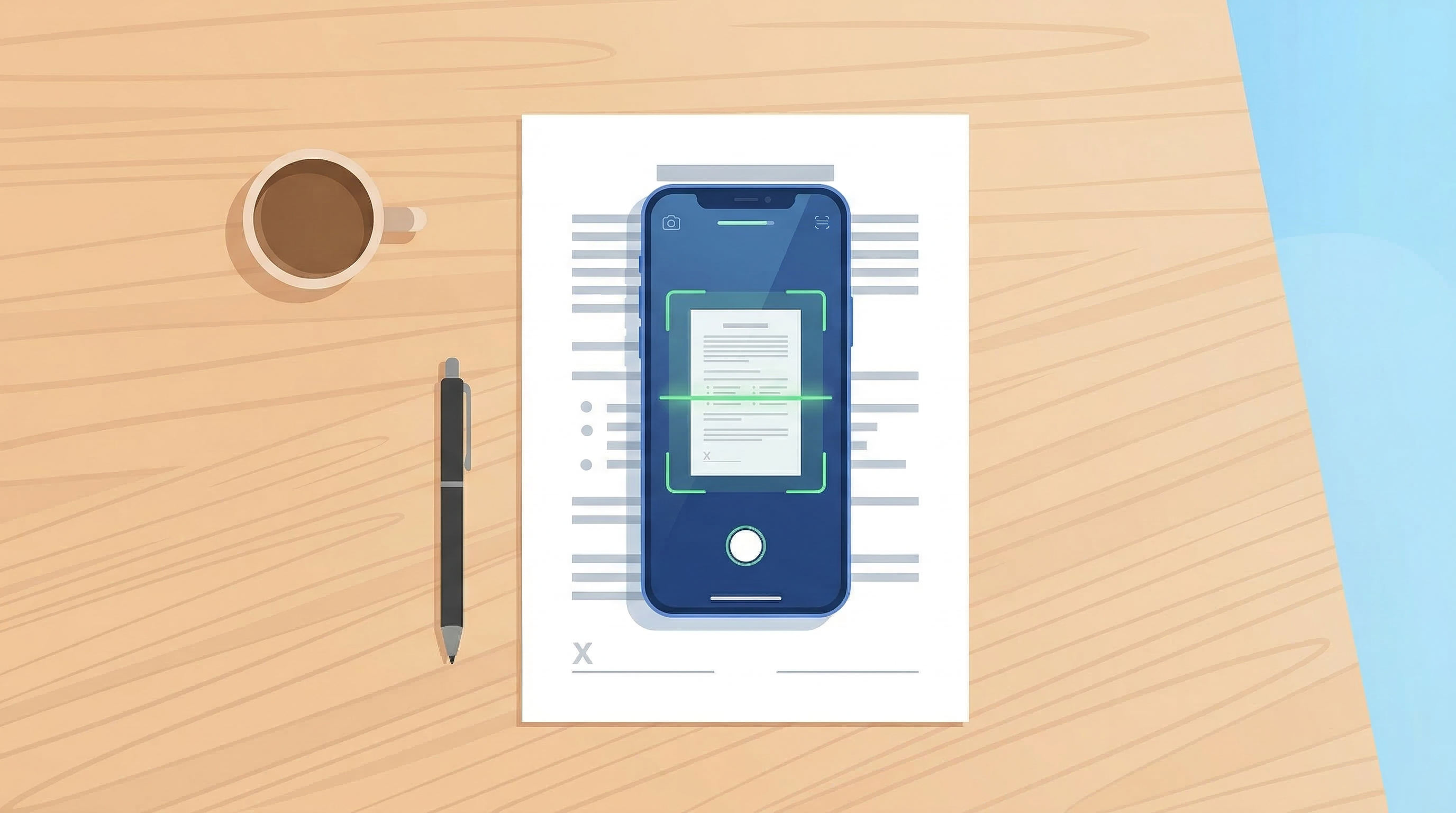
Bulky flatbed scanners were fine for the office of 2010. In 2026, the most powerful scanner you own fits in your pocket. Your smartphone camera — combined with the right app — can produce professional-quality PDF scans in seconds, anywhere.
Whether you need to digitize a contract, preserve a receipt, or archive important paperwork, this guide walks you through exactly how to do it.
Why Scan Documents with Your Phone?
The case for mobile scanning is simple:
- Speed — Point, shoot, done. No warming up hardware, no feeding pages.
- Quality — Modern smartphone cameras capture sharp images at resolutions above 12MP, more than enough for clean document scans.
- Portability — Scan a lease agreement at your landlord's kitchen table. Capture an invoice at a client site. No constraints.
- Cost — A good scanning app costs a fraction of a physical scanner, with zero maintenance.
What You Need Before You Start
Before scanning, set yourself up for success:
- Good lighting — Natural daylight or a well-lit room eliminates shadows. Avoid direct overhead light that creates glare.
- A flat surface — Place the document on a desk or table, not held in hand.
- A scanning app with auto-edge detection — Native camera apps produce photos, not PDFs. A dedicated scanner app like PDF Scan Fast detects document edges automatically and applies perspective correction so your scan looks like it came from a flatbed.
How to Scan on iPhone in 2026
Option 1: Use a Dedicated Scanner App (Recommended)
Dedicated apps produce superior results because they add edge detection, auto-crop, contrast enhancement, and direct PDF export.
Steps with PDF Scan Fast:
- Open the app and tap the scan button.
- Point your camera at the document — the app highlights the detected edges in real time.
- Tap to capture, or let the auto-shutter fire when alignment is perfect.
- Review the scan, adjust crop or rotation if needed.
- Save as PDF or JPG, rename the file, and store it in your folder of choice.
Multi-page documents? Just keep scanning — the app stacks pages into a single PDF automatically.
Option 2: Apple Notes Built-In Scanner
Apple Notes has a built-in scanner (tap the attachment icon → Scan Documents). It works in a pinch but lacks the organizational features, OCR search, and e-signature tools you get with a dedicated app.
How to Scan on Android in 2026
Option 1: Google Drive Scan
Open Google Drive, tap the + button, choose Scan. This is built into every Android device and saves scans directly to your Drive. Useful for quick one-off scans.
Option 2: Dedicated Scanner App
For regular use, a dedicated app is the better experience. PDF Scan Fast on Android provides the same auto-edge detection and PDF export as the iOS version — with Smart Folders to keep everything organized.
Tips for Perfect Scans Every Time
Lighting matters most. Shadows are the enemy of a clean scan. If you're in a dim room, turn on the flash or move closer to a window.
Hold steady — or don't hold at all. Place your phone on a flat surface directly above the document for the sharpest results. Most scanner apps let you set a timer shutter for this.
Use A4 or Letter presets. Good apps let you define the paper size so the output always matches standard dimensions, which matters when printing or filing digitally.
Name your files immediately. "Scan_0042.pdf" is useless three weeks later. Apps like PDF Scan Fast let you rename files right at capture — build the habit.
Check the preview before you move on. A blurry scan is only obvious after the document is back in a drawer. Always review before you close the document.
Multi-Page Document Scanning
Scanning a 10-page contract on your phone sounds tedious — it doesn't have to be.
Modern scanner apps handle multi-page workflows cleanly:
- Scan page by page; the app queues them in order.
- Reorder or delete individual pages from the preview.
- Export as a single merged PDF with one tap.
This workflow is especially powerful for freelancers and small business owners who regularly deal with contracts, proposals, or lease agreements.
Organizing Your Scans After Capture
Scanning is only useful if you can find what you scanned. A good organizational system matters:
- Use folders by category — Contracts, Receipts, IDs, Medical, Personal.
- Let OCR search do the work — Apps with OCR (Optical Character Recognition) make every scanned document full-text searchable. You can search "invoice March 2026" and find it in seconds.
- Sync to cloud — Enable cloud backup so your scans survive a lost or broken phone.
PDF Scan Fast's Smart Folders combine automatic categorization with OCR-powered search, making your digital archive genuinely useful.
When to Still Use a Flatbed Scanner
For very large documents (architectural drawings, full newspaper pages), high-resolution archival photography, or batch scanning hundreds of pages daily, a dedicated hardware scanner still wins. For everything else, your phone is faster and more convenient.
Start Scanning Today
The paperwork pile on your desk doesn't have to be permanent. With a modern scanning app and the techniques above, you can digitize, organize, and share any document in under a minute.
Ready to go paperless? Download PDF Scan Fast — it's the fastest way to turn your phone into a professional document scanner, with built-in e-signatures and cloud sync included.
Try PDF Scan Fast Free
Scan, sign, and organize your documents in seconds. Available on iOS and Android.
Related Articles
E-Signatures vs Wet Signatures: Legal Validity in 2026
Are e-signatures as legally valid as handwritten ones in 2026? Understand the law, best practices, and when each type applies.
Read article
Top 10 Tips to Organize Digital Documents Like a Pro
Stop losing files. These 10 practical tips help you organize your digital documents for instant retrieval — at work or at home.
Read article