Top 10 Tips to Organize Digital Documents Like a Pro
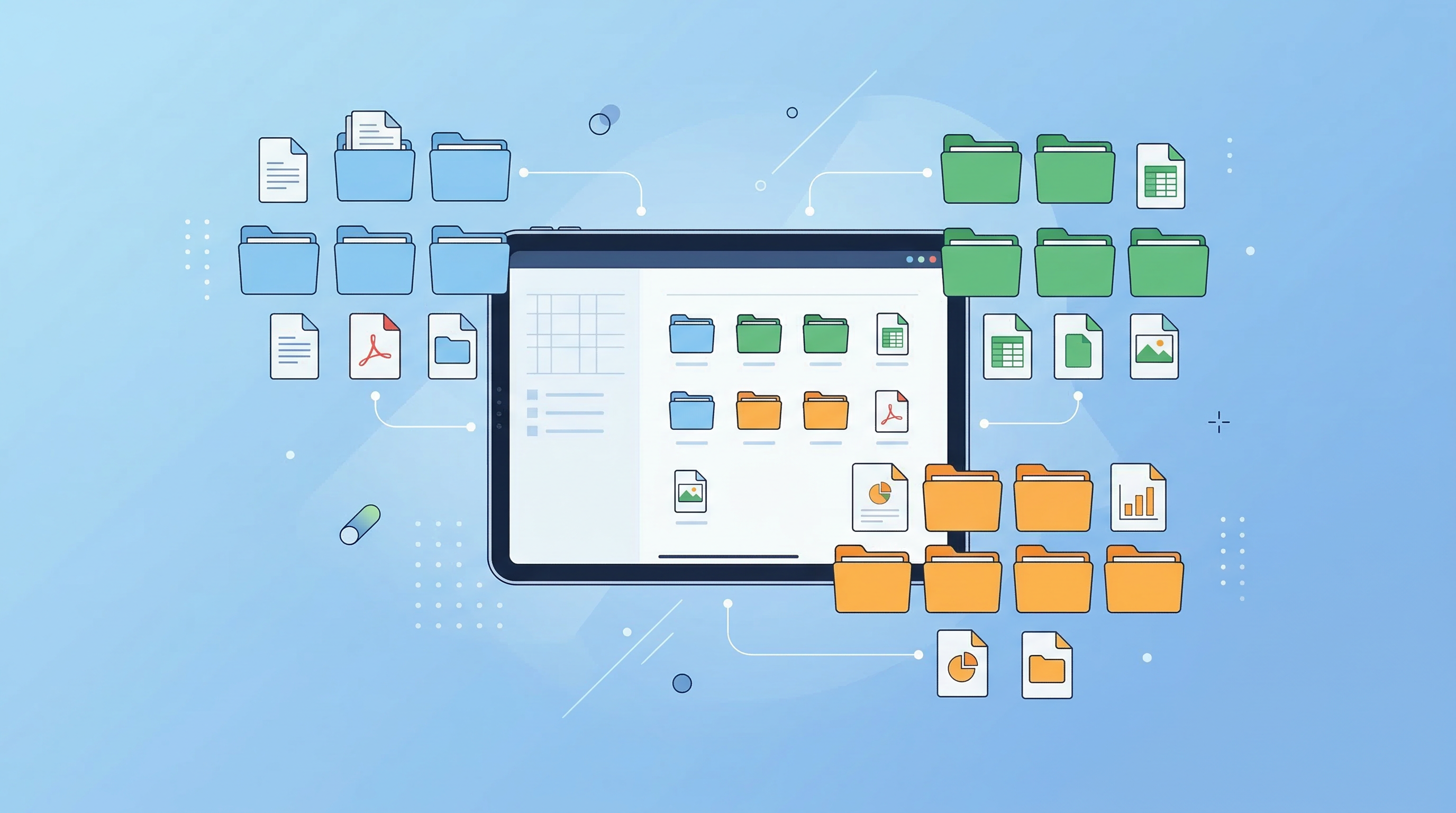
Finding a document should take seconds, not minutes. Yet most people's digital document storage is the equivalent of a physical filing cabinet where someone emptied a bag of papers — loosely sorted, inconsistently named, and impossible to navigate quickly.
Here are ten practical tips that actually work, whether you're managing a home archive, a freelance business, or a team.
Why Digital Document Organization Matters
Disorganized files cost real time. Research consistently shows that knowledge workers spend a significant portion of their week searching for files they know they have. Multiply that by a year, and poor organization is a substantial tax on your productivity.
The goal isn't a perfect system — it's a system you'll actually maintain.
Tip 1: Build a Folder Hierarchy That Mirrors Your Life
Start with broad categories, then drill down:
Documents/
├── Finance/
│   ├── Tax Returns/
│   ├── Bank Statements/
│   └── Invoices/
├── Legal/
│   ├── Contracts/
│   └── Identification/
├── Medical/
└── Work/
    ├── Clients/
    └── Projects/
The key is to create the structure first, then fill it. Don't let files accumulate in a Downloads folder and sort them "later."
Tip 2: Use Consistent File Naming Conventions
Names like "scan0047.pdf" and "final_FINAL_v3.docx" are useless. Use a consistent format:
Recommended: YYYY-MM-DD_Description_Source.pdf
Examples:
2026-03-15_Lease-Agreement_LandlordName.pdf2026-02-28_Invoice-#1042_ClientXYZ.pdf2026-01-20_Tax-Return-2025_IRS.pdf
Date-first naming sorts files chronologically by default in any file manager.
Tip 3: Scan Physical Documents Immediately
Paper documents you "plan to file" become piles. Establish a rule: any physical document that matters gets scanned the day it arrives.
A mobile scanner like PDF Scan Fast makes this genuinely fast — scan, name, file, and the physical document can be recycled or shredded (for non-originals). The whole process takes under two minutes.
Tip 4: Use OCR So Everything Is Searchable
Scanned documents are images unless you apply OCR (Optical Character Recognition). With OCR enabled, every word in every scanned document becomes searchable — meaning you can find "invoice from March 2026" across hundreds of files instantly.
PDF Scan Fast's OCR Text Export feature converts your scans into searchable PDFs, turning your archive into a proper database.
Tip 5: Create a Consistent Inbox Folder
Don't sort files during the capture moment — it slows you down and leads to inconsistent results. Instead:
- All new documents land in a single Inbox folder.
- Once a week (or twice), process the inbox: name, categorize, and move each file.
This "capture now, sort later" method is borrowed from productivity frameworks like GTD and works well for document management.
Tip 6: Set Expiry Dates for Temporary Documents
Not all documents need to be kept forever. Annotate or tag documents with a review date:
- Receipts for returnable items: keep until return window closes
- Utility bills: keep 12 months
- Tax documents: keep 7 years (US) / varies by country
- Contracts: keep for the duration + statute of limitations
Schedule a quarterly archive review to delete expired documents. Less clutter means faster search.
Tip 7: Back Up to Cloud Storage
A local-only document archive is one hard drive failure or theft away from total loss. Cloud backup is non-negotiable.
Options include:
- Google Drive — 15GB free, excellent search
- iCloud Drive — Tight Apple ecosystem integration
- Dropbox — Strong desktop sync
- In-app sync — Apps like PDF Scan Fast sync scans across devices automatically in the background
Redundancy matters for critical documents — keep a local copy and a cloud copy.
Tip 8: Use Smart Folders and Tags
Modern document apps support tags and smart folders that aggregate files by criteria rather than location. For example:
- A "2026 Tax" smart folder that includes all documents tagged
taxand2026 - A "Pending Signatures" tag for contracts awaiting action
Smart Folders in PDF Scan Fast automatically surface documents by type (receipts, IDs, invoices) using OCR-powered categorization — without you lifting a finger after the scan.
Tip 9: Digitize and Destroy (Responsibly)
Physical documents create clutter and fire risk. Once you've scanned and backed up a non-original document:
- Shred sensitive documents — bank statements, tax forms, anything with personal data
- Recycle non-sensitive paper — old receipts, utility bills, product manuals
- Keep original documents — passports, birth certificates, property deeds (but scan them too)
A shredder is a worthwhile investment if you're committing to a paperless system.
Tip 10: Review and Refine Quarterly
No system survives first contact with reality perfectly. Schedule a quarterly review:
- Are new documents getting filed correctly?
- Are the folder categories still relevant?
- Are there orphan files in the Inbox or Downloads?
- Are backups running successfully?
A 30-minute quarterly review prevents the entropy that turns organized archives back into chaos.
Building the Habit
Organization systems fail not because of bad design — they fail because they require too much friction. The best setup is the one you'll actually use consistently.
Start with Steps 1, 2, and 3. Get a solid folder structure, naming convention, and scan-immediately habit in place. The rest follows naturally.
A mobile scanner that lives on your phone, like PDF Scan Fast, removes the biggest friction point: the moment between "I have a document" and "it's filed and searchable." That gap is where most paper piles are born.
Try PDF Scan Fast Free
Scan, sign, and organize your documents in seconds. Available on iOS and Android.
Related Articles
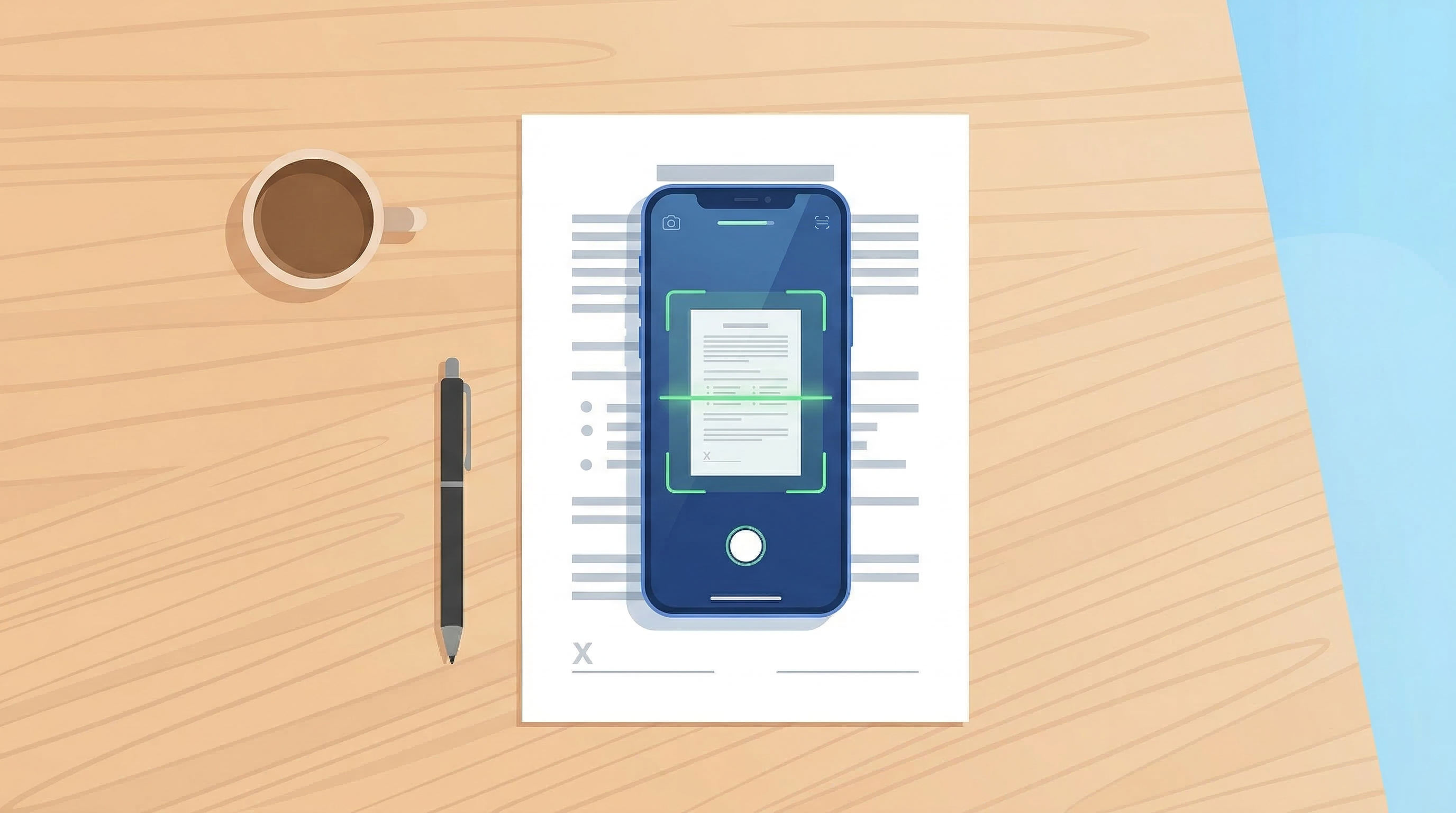
How to Scan Documents with Your Phone in 2026
Learn the fastest ways to scan any document with your iPhone or Android in 2026. No flatbed scanner needed — just your phone camera.
Read article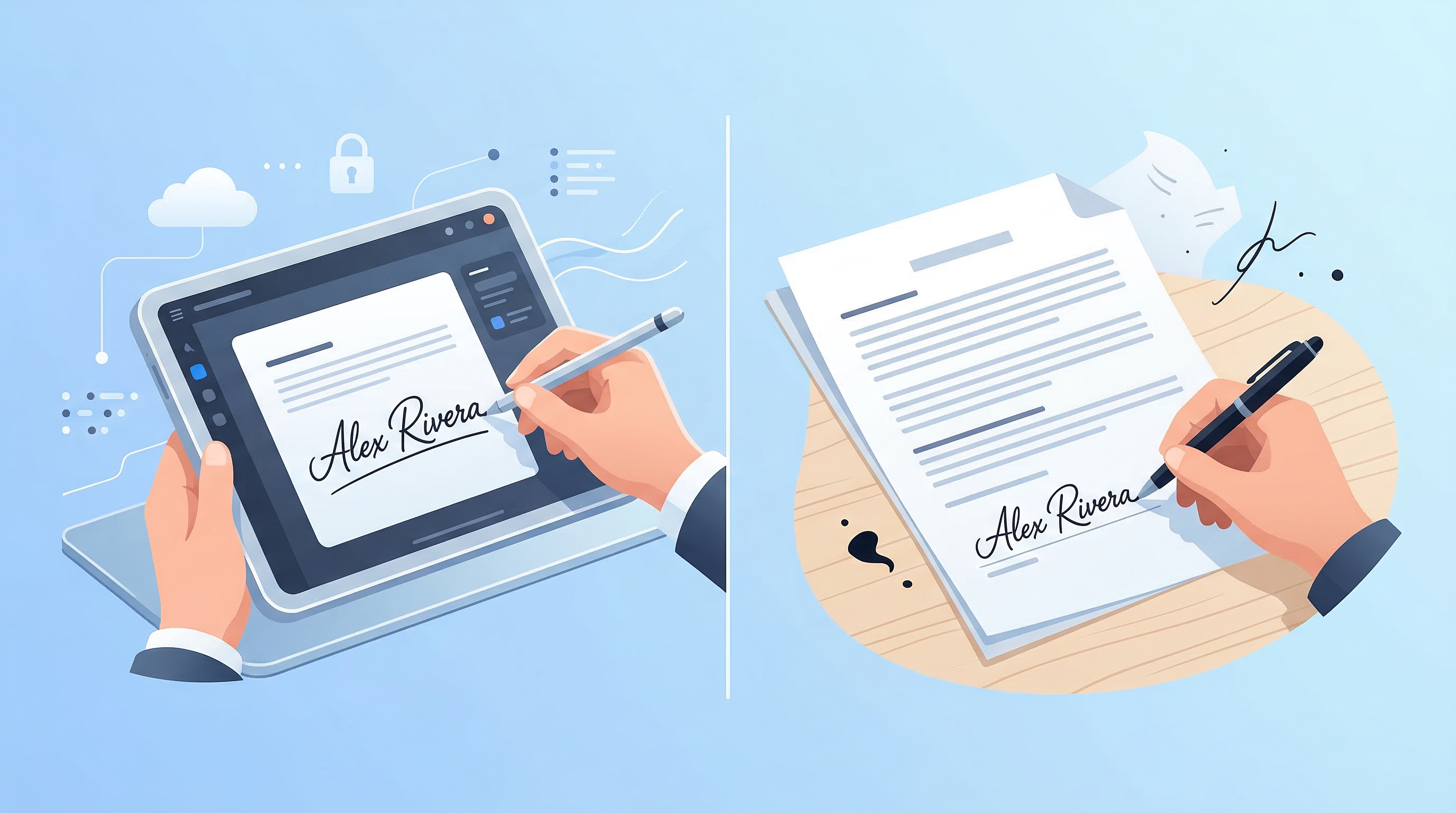
E-Signatures vs Wet Signatures: Legal Validity in 2026
Are e-signatures as legally valid as handwritten ones in 2026? Understand the law, best practices, and when each type applies.
Read article