OCR Technology Explained: How Your Phone Reads Text
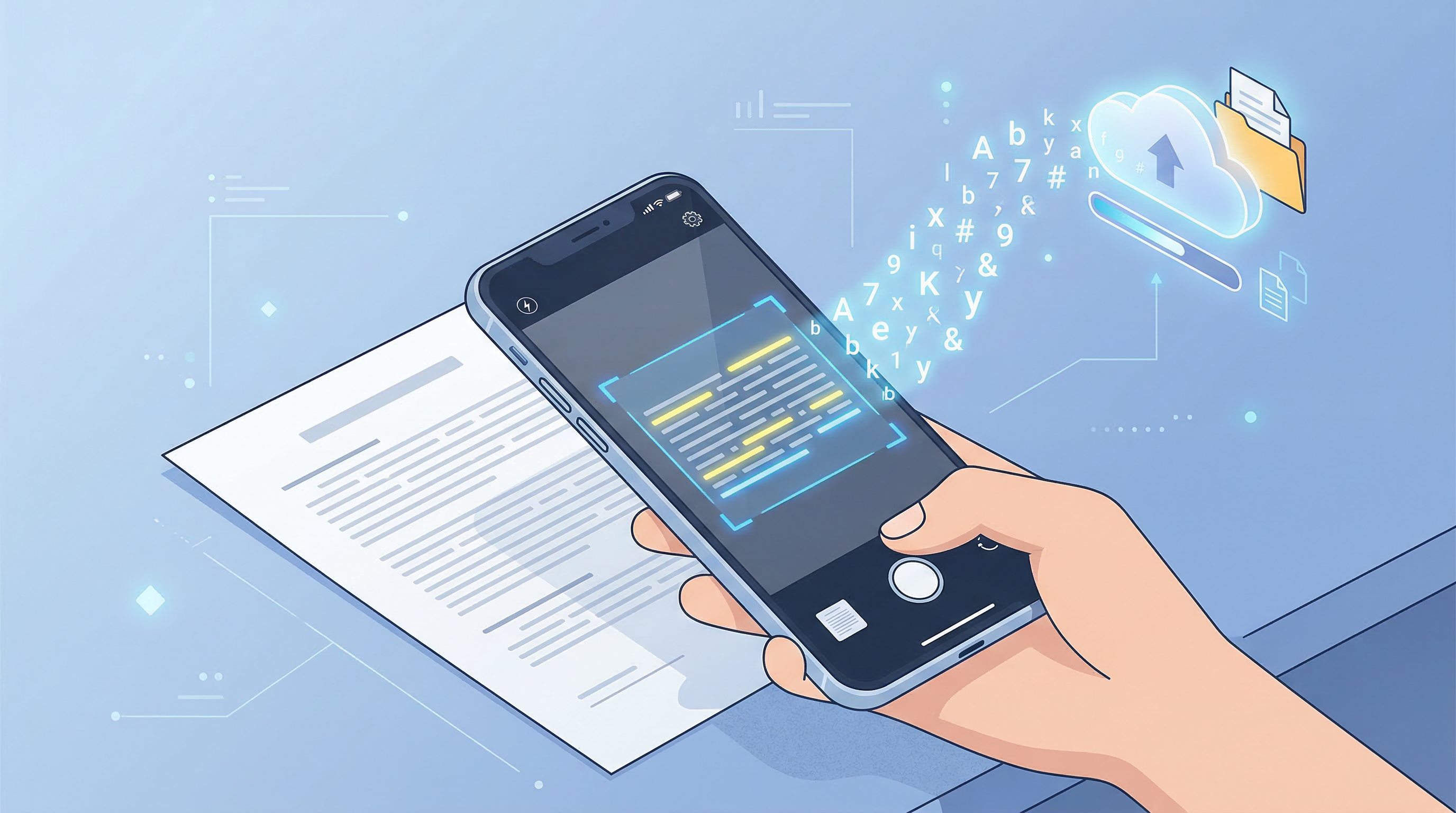
You photograph a receipt, and moments later the app tells you it was from a restaurant in Chicago dated February 14, 2026. You didn't type any of that. The app read it.
That's Optical Character Recognition — OCR — and it's one of the most practically useful technologies built into modern document scanner apps. Here's how it works and why it should be part of your document workflow.
What Is OCR?
OCR stands for Optical Character Recognition. It's the technology that converts images containing text — photographs, scans, screenshots — into machine-readable, editable, and searchable text.
Before OCR, a scanned document was just a picture of text. You couldn't search it, copy from it, or have a computer process its contents. OCR changes that fundamentally.
A Brief History of OCR
OCR has existed in various forms since the 1950s, initially used by postal services to sort mail by reading handwritten zip codes. By the 1990s, desktop OCR software could process typed documents with reasonable accuracy.
The modern mobile OCR revolution happened in two phases:
- Cloud-powered OCR (2010s) — Images are uploaded to servers with massive processing power, text is extracted remotely.
- On-device neural OCR (2020s) — Machine learning models run directly on your phone's chip, enabling real-time, offline text recognition with accuracy that rivals or exceeds earlier cloud-only approaches.
Today's smartphone OCR, as used in apps like PDF Scan Fast, can handle dozens of languages, multiple fonts, curved or warped text, and even handwriting in many cases.
How OCR Works: Step by Step
Modern OCR processes a document image through several stages:
1. Pre-processing
The raw camera image is cleaned up before text recognition begins:
- Deskew — Corrects the angle of the document if it was photographed at a tilt
- Binarization — Converts the image to black and white to improve contrast between text and background
- Noise reduction — Removes speckles, smudges, and artifacts from the image
2. Text Detection
The algorithm identifies regions of the image that contain text, separating them from photos, logos, or blank space. Modern neural networks are extremely good at this, even when text is partially obscured or overlapping images.
3. Character Segmentation
Within each text region, the algorithm identifies individual characters — separating an "m" from the neighboring "a" and "r" in "march," for example.
4. Character Recognition
Each segmented character is compared against a trained model's understanding of what letters and numbers look like across thousands of fonts. The model outputs its best guess for each character along with a confidence score.
5. Language Modeling
The recognized characters are assembled into words and sentences. A language model checks whether the sequence makes sense — correcting "tbe" to "the" when context suggests a common word was misread.
6. Output
The result is a text layer embedded in the document — either as a plain text export or as an invisible text layer behind the visible scan, making the PDF fully searchable.
Why OCR Matters for Document Management
Without OCR, your scanned documents are just images — visually readable, but not searchable. With OCR, your entire document archive becomes a searchable database.
Practical examples:
- Search "rent deposit" across 500 scanned documents and find the relevant lease clause in seconds
- Find every receipt from a specific vendor for expense reporting
- Locate an ID number on a scanned government document without visually reading every file
- Copy text from a scanned page into an email without retyping
For anyone managing a significant number of documents — freelancers, small businesses, students — OCR transforms a passive archive into an active tool.
OCR Accuracy in 2026: What to Expect
Modern OCR on high-quality scans of printed text in major languages achieves accuracy rates above 99%. Where accuracy drops:
- Handwriting — Still challenging, though neural models have improved significantly. Neat, block-letter handwriting is recognized well; cursive remains difficult.
- Low-resolution images — Blurry or underexposed scans reduce accuracy substantially.
- Complex layouts — Multi-column documents with mixed text and images can confuse layout analysis.
- Unusual fonts or decorative text — Stylized fonts and scripts can trip up OCR engines.
- Faded or damaged documents — Old documents with degraded text are harder to process accurately.
Tips for best OCR results: scan in good lighting, hold the camera steady (or use a tripod), and ensure the document is flat and free of wrinkles.
Types of OCR Output
Depending on the app and your needs, OCR can output in different formats:
| Output type | Best for | |---|---| | Searchable PDF | Archiving documents while preserving original appearance | | Plain text (.txt) | Copying content into another application | | Word document (.docx) | Editing the document after scanning | | Structured data extraction | Invoices, receipts, forms — where specific fields are pulled out |
PDF Scan Fast's OCR Text Export feature generates searchable PDFs and extractable text, making every scan a searchable, usable document rather than a static image.
Multilingual OCR
If you work with documents in multiple languages, check that your scanning app supports them. Leading OCR engines in 2026 typically support 50-100+ languages including Latin scripts, Cyrillic, Arabic, Chinese, Japanese, Korean, and more.
OCR for Special Document Types
Receipts: OCR can extract the vendor name, date, line items, and total — making expense tracking nearly automatic for apps that support it.
Business cards: OCR reads names, email addresses, phone numbers, and titles for direct import into contacts.
ID documents: Driver's licenses, passports, and national IDs have standardized layouts that OCR can parse reliably for identity verification workflows.
Contracts: Full-text search across contract documents makes legal review faster — find every mention of "termination clause" or "payment terms" in seconds.
Getting Started with OCR on Your Phone
- Download a scanning app with built-in OCR — PDF Scan Fast supports OCR on both iOS and Android.
- Scan your document as normal.
- Enable OCR export in the settings or at save time.
- The resulting PDF is fully searchable.
- Use the in-app search to find documents by their content, not just their filename.
Once your archive is OCR-processed, the difference in usability is dramatic. What was a pile of image files becomes a knowledge base you can query in seconds.
Try PDF Scan Fast Free
Scan, sign, and organize your documents in seconds. Available on iOS and Android.
Related Articles
How to Scan Documents with Your Phone in 2026
Learn the fastest ways to scan any document with your iPhone or Android in 2026. No flatbed scanner needed — just your phone camera.
Read article
E-Signatures vs Wet Signatures: Legal Validity in 2026
Are e-signatures as legally valid as handwritten ones in 2026? Understand the law, best practices, and when each type applies.
Read article