How to Sign a PDF on Your Phone Without Printing
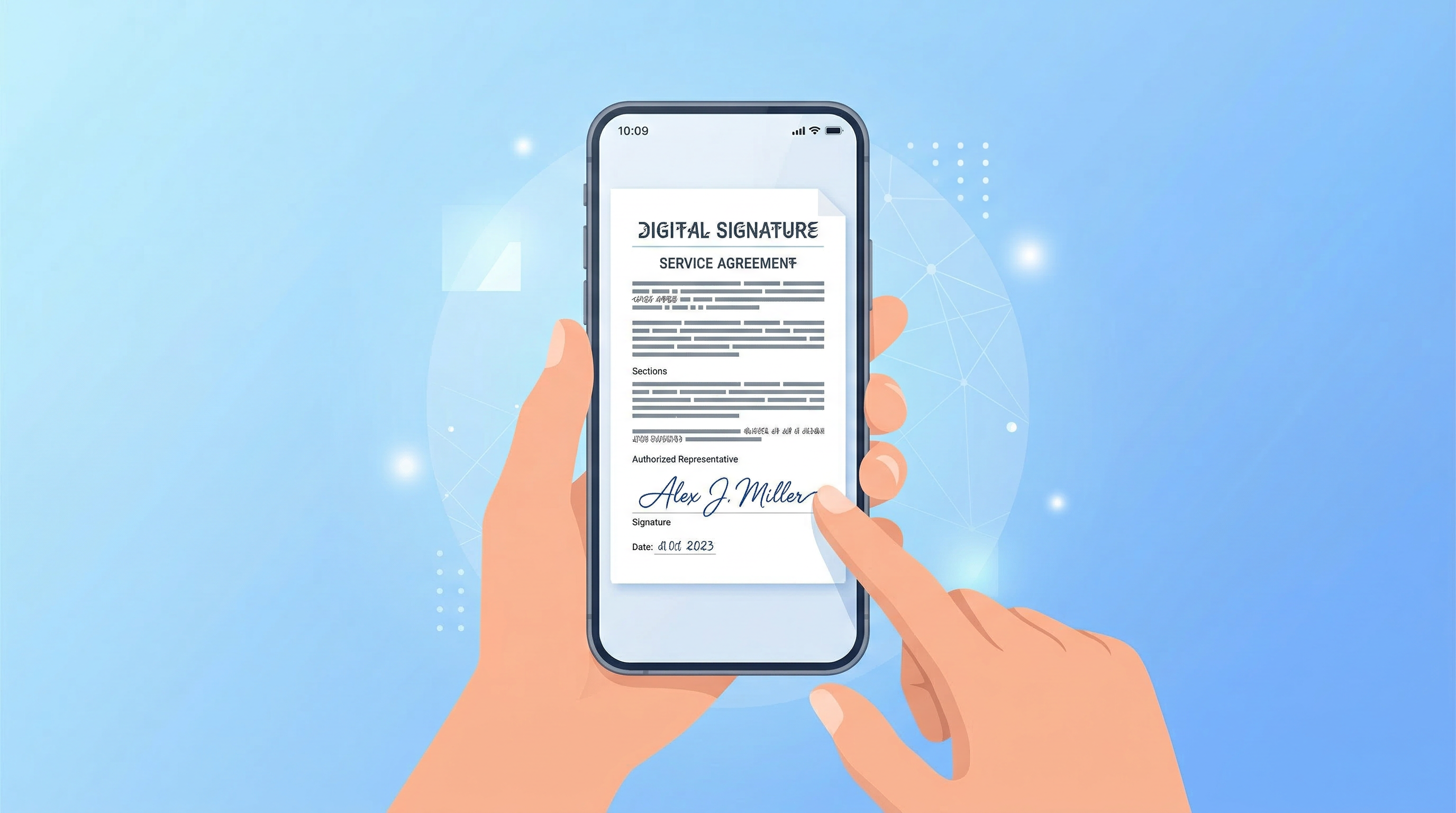
Printing a document just to sign it and scan it back is one of those habits we inherited from the pre-smartphone era. In 2026, it's entirely unnecessary. You can sign any PDF — a lease, a contract, an NDA, a form — directly on your phone in under a minute.
Here's the complete guide to doing it cleanly and legally.
Why Avoid Printing to Sign?
The print-sign-scan workflow costs more than it seems — and it's one of the last reasons people keep a home printer. See how going fully paperless at home saves money once signing is also handled digitally.
- Time: Printing, signing, scanning, and emailing takes 10-15 minutes. Signing digitally takes 60 seconds.
- Money: Ink, paper, and printer maintenance add up — especially if you sign regularly.
- Quality: Scanned-back signatures often look poor due to skewed alignment, low resolution, or inconsistent lighting.
- Legality: A JPEG of your signature pasted into a PDF has no audit trail and is far more forgeable than a proper e-signature. If you need to scan a document before signing it, our guide to scanning documents with your phone will help you get a clean, professional result.
Digital signing wins on every dimension.
Method 1: Use a Dedicated Signing App (Best Option)
A dedicated app provides the cleanest experience and produces legally valid e-signatures with proper audit trails. Our comparison of the best PDF scanner apps for iPhone and Android can help you choose the right one.
How to Sign a PDF with PDF Scan Fast
-
Open the app and import the PDF you need to sign. You can import from your email, Files app, Google Drive, or directly from another app via Share Sheet.
-
Tap the signature tool — PDF Scan Fast places a floating toolbar with a pen icon for signatures.
-
Draw your signature using your finger or a stylus. The app captures a smooth, natural-looking signature.
-
Choose your ink color — black for formal documents, blue for contracts (many legal traditions prefer blue ink for originals), red for annotations, or green for informal use.
-
Position the signature by dragging it to the correct field on the document.
-
Resize if needed — pinch to scale the signature to fit the signature line.
-
Save and share — send the signed PDF via email, WhatsApp, or AirDrop directly from the app.
Total time: under 60 seconds for a standard single-signature document.
Method 2: Use Apple's Built-In Markup Tool (iOS)
On iPhone and iPad, you can sign PDFs directly in the Files app or Mail app using Markup:
- Open the PDF in the Files app.
- Tap the pencil icon to open Markup.
- Tap the + button → Signature.
- Draw your signature, tap Done.
- Drag the signature to the correct position.
- Tap Done to save the signed PDF.
Limitations: Apple's Markup doesn't create an audit trail, and you can't manage multiple signature styles or select ink colors. For personal documents, it's fine. For business contracts, use a dedicated app.
Method 3: Use Gmail or Outlook's Built-In PDF Viewer (Android)
On Android, some email clients allow basic PDF annotation including signature drawing. However, these tools are minimal and don't meet the requirements for legally robust e-signatures in regulated contexts.
Tips for Professional-Looking Signatures
Practice your digital signature. The first few times signing with a finger on a small screen can feel awkward. Most apps let you save a signature template so you only draw it once — PDF Scan Fast saves your signature for reuse across documents.
Use a stylus for precision. An Apple Pencil or Samsung S Pen produces a signature as natural-looking as pen on paper.
Match the ink color to context. Blue ink is traditionally associated with original documents (as opposed to photocopies), which is why many contracts request a "blue ink signature." Digital ink color selection in PDF Scan Fast lets you match this convention.
Sign in the right place. Zoom into the signature field before placing your signature to ensure accurate positioning. Misaligned signatures on professional documents look careless.
Is a Phone-Signed PDF Legally Valid?
Yes — with the right app. Electronic signatures are legally recognized under the US ESIGN Act, EU eIDAS Regulation, and equivalent laws in most countries worldwide.
The key requirements:
- Clear intent to sign
- Both parties consent to electronic execution
- The signature is associated with the signed document
- A verifiable record can be produced
A dedicated signing app like PDF Scan Fast meets these requirements. A scanned image of a signature does not — it's just a picture.
For high-stakes documents (real estate, legal proceedings, regulated industries), verify the specific signature requirements with legal counsel in your jurisdiction.
Organizing Your Signed Documents
Signing the document is step one. What happens next matters too:
- Save a copy immediately — cloud sync ensures you never lose a signed agreement. Combine this with a digital document organization system to keep your signed contracts searchable and retrievable.
- Name the file descriptively —
2026-03-NDA-ClientName-Signed.pdfbeatsdocument_final_signed_v2.pdf. - Store in a dedicated folder — keep a "Signed Contracts" or "Agreements" folder for instant retrieval.
PDF Scan Fast's Smart Folders can automatically surface signed documents, making your archive searchable and organized from day one.
The Bottom Line
Signing a PDF on your phone is faster, cheaper, and legally equivalent to printing and signing in almost every scenario you'll encounter. The technology is mature, the legal framework is solid, and the apps make it genuinely easy.
Stop printing. Download PDF Scan Fast, sign your next document in 60 seconds, and never run out of ink cartridges again.
Related Reading
Try PDF Scan Fast Free
Scan, sign, and organize your documents in seconds. Available on iOS and Android.
Related Articles
How to Fax From Your Phone in 5 Minutes (2026 Guide)
No fax machine needed. Learn the fastest ways to fax from iPhone or Android, plus tips to send clean PDFs that won’t get rejected.
Read articleHow to Scan a Document for Free (Phone, PC, and Without a Scanner) — 2026 Guide
Need to scan paperwork but don’t want to pay for an app or buy a scanner? Here are the fastest free ways to scan to PDF on iPhone, Android, Windows, and Mac—plus tips to make your scans look professional.
Read article