How to Scan and Send Documents from Your Phone (Email, WhatsApp, AirDrop, Drive)
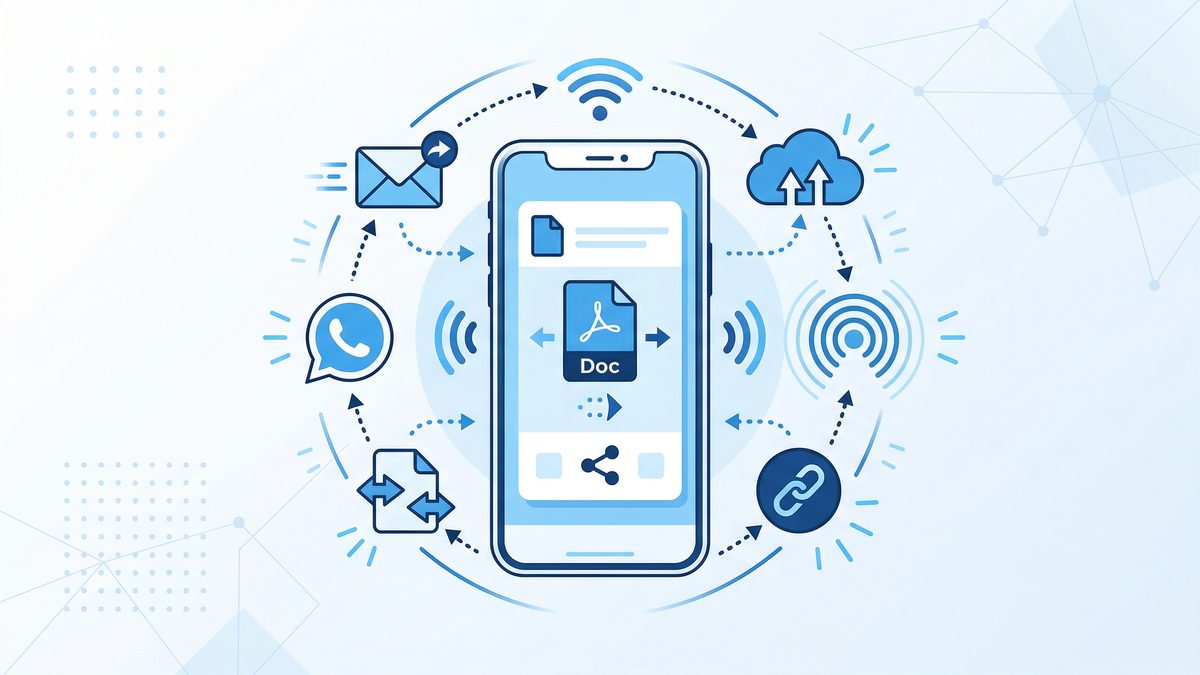
If you’ve ever needed to send a signed form, an ID, a receipt, or a page from a contract “right now,” you already know the pain: you take a photo, the edges are crooked, the text is hard to read, and the file is too big to attach.
The good news is that you can scan and send documents from your phone in a way that looks like a real scanner produced it—clean, straight, readable, and easy to share.
This guide covers exactly how to scan documents with your phone and send them (iPhone or Android), plus the best sharing methods for different situations: email, WhatsApp, AirDrop, Google Drive, iCloud, and more.
Why you should scan (not photograph) before you send
A quick photo works for casual use, but scanning is better when you need the document to be accepted by a school, employer, bank, landlord, or client.
When you scan instead of taking a regular photo, you typically get:
- Auto-cropped edges (no messy background)
- Perspective correction (no trapezoid pages)
- Better readability (contrast and sharpening)
- Multipage support (one PDF instead of 6 separate images)
- Smaller, more shareable files (PDF compression)
- Searchable text if OCR is enabled
That’s also why scanning apps exist—and why tools like PDF Scan Fast are designed for “scan → clean up → export → send” in a couple of taps. Our comparison of the best PDF scanner apps can help you choose the right one for your needs.
Before you scan: set yourself up for a clean PDF
A few seconds of setup saves you from rescanning later.
Lighting and background
- Place the paper on a flat surface.
- Use even light; avoid strong shadows from your hand.
- Choose a high-contrast background (e.g., white paper on a dark desk).
Keep the page flat
If a page is curled (receipts are notorious), flatten it with your hand for a moment and capture quickly.
Decide the right output: PDF vs image
- Choose PDF for forms, contracts, school paperwork, invoices, and anything multipage.
- Choose JPG/PNG for a single image you’ll paste into a chat or design.
For most “send this document” situations, PDF is the safest choice.
How to scan a document on iPhone and send it
You have two main options: the built-in Notes app (free) or a dedicated scanner app.
Option 1: Scan using the iPhone Notes app
- Open Notes.
- Create a new note (or open an existing one).
- Tap the camera icon.
- Tap Scan Documents.
- Hold your phone steady; Notes will auto-capture.
- Adjust corners if needed, then tap Keep Scan.
- Add more pages if needed, then tap Save.
To send it:
- In the note, tap the scanned document.
- Tap the Share icon.
- Choose Mail, Messages, WhatsApp, Save to Files, etc.
When Notes is enough: one-off scans, simple forms, quick personal use.
When you’ll want an app like PDF Scan Fast: frequent scanning, better organization, exporting options, OCR/search, and consistent results.
Option 2: Scan using a scanner app (recommended for frequent use)
Scanner apps are built for:
- consistent multipage scanning
- more reliable edge detection n- PDF size control
- naming/organization
- exporting to different destinations
Workflow is usually:
- Scan pages (auto-capture)
- Review and reorder pages
- Apply a filter (color, grayscale, black & white)
- Export as PDF
- Send/share
With PDF Scan Fast, you can scan multiple pages into one PDF and share it straight to email or cloud storage without juggling individual photos.
How to scan a document on Android and send it
Android phones vary by manufacturer, but the overall approach is the same.
Option 1: Scan using Google Drive
- Open Google Drive.
- Tap +.
- Tap Scan.
- Capture the page.
- Crop/rotate as needed.
- Add more pages.
- Tap Save.
To send it:
- Open the saved scan in Drive.
- Tap Share.
- Send a link or manage permissions.
Best for: documents you want stored in Drive anyway.
Option 2: Scan using a dedicated app
A dedicated scanner app is typically faster if you scan often or need consistent quality.
With PDF Scan Fast, the steps are designed to be the same on iPhone and Android so your process doesn’t change when you switch devices.
The best ways to send scanned documents (and when to use each)
Different channels have different limits. Here’s how to choose the best one.
Send a scanned document by email (best for formal paperwork)
Email is still the default for schools, HR, legal paperwork, and clients.
Tips for email attachments:
- Keep the file under common attachment limits (often 10–25 MB).
- Use PDF, not images.
- If it’s multipage, ensure it’s one file.
- Name it clearly — a consistent convention makes the file easy for the recipient to identify:
Lastname_Firstname_DocumentName.pdf.
What to write in the email:
- 1 sentence stating what the document is
- 1 sentence asking if anything else is needed
Example:
Hi Morgan, attached is the signed lease addendum. Please confirm receipt. Thanks!
Send a scanned document on WhatsApp (best for quick back-and-forth)
WhatsApp is great for quick coordination, but it’s easy to accidentally lower quality.
Best practice: send your scan as a Document, not as a photo.
- On WhatsApp, tap Attach → Document.
- Select your PDF from Files/Drive.
This helps preserve quality and keeps multipage scans together.
Send a scanned document via AirDrop (best for Apple-to-Apple sharing)
AirDrop is one of the fastest ways to move a PDF from iPhone to Mac (or another iPhone) without email.
Steps:
- Open your scan (in Files, Notes, or PDF Scan Fast).
- Tap Share.
- Tap AirDrop.
- Select the recipient device.
Tip: rename the file before AirDropping so it’s easy to find on the receiving device.
Send a scanned document with a share link (Drive, iCloud, Dropbox)
Share links are ideal when:
- the PDF is too large for email
- multiple people need access
- you want version control
Google Drive: upload → share → set permissions (viewer/commenter/editor).
iCloud Drive: save to Files → iCloud Drive → share.
Dropbox/OneDrive: similar flow.
Security tip: avoid “Anyone with the link can view” for sensitive documents. Use “Only people you add.” For a full overview of document sharing security, read our mobile document security guide.
Send a scanned document by text message (best for small PDFs)
SMS/MMS can be unreliable for PDFs depending on carrier and file size.
If you need to text a PDF:
- keep it short (1–2 pages)
- compress the PDF if your app supports it
- consider sending an iCloud/Drive link instead
How to keep scanned documents readable (quality checklist)
Before you hit send, do a 20-second review:
- Edges: all corners included, no missing margins
- Orientation: not sideways
- Readability: zoom in and confirm small text is sharp
- Pages: correct order, none missing
- File size: reasonable for the channel you’re using
If the scan is hard to read, try:
- rescanning with better light
- switching to a black & white filter for text-heavy pages
- turning on OCR if your app offers it
Common problems (and how to fix them)
“My PDF is too big to email.”
Fixes:
- Use a scanner app that supports PDF compression.
- Export in grayscale for text-only documents.
- Reduce resolution if the app offers a quality slider.
- If needed, upload to Drive/iCloud and email a link.
“WhatsApp made my scan blurry.”
This happens when you send as an image.
Fix:
- Send as Document.
- Use a PDF, not a JPG.
“The scan has shadows or a gray background.”
Fix:
- Improve lighting (use a lamp, avoid backlighting).
- Use a black & white or document filter. n- Make sure the page is flat.
“My scan is missing pages.”
Fix:
- Use a multipage scanning mode.
- After scanning, review thumbnails and page count.
- Combine pages into one PDF before sharing.
A simple workflow you can reuse every time
Once you've got a sending workflow, pair it with a digital document organization system so the files you send are also archived and findable long-term. Here's a repeatable process:
- Scan in a dedicated app (multipage)
- Review, reorder, and crop
- Apply a document-friendly filter
- Export as PDF
- Rename the file
- Share via the right channel (email / WhatsApp Document / AirDrop / Drive link)
Apps like PDF Scan Fast are built around this exact workflow so you can go from paper to a professional-looking PDF in minutes — especially useful for freelancers who need to share contracts and invoices quickly from wherever they work.
CTA: make scanning and sending documents a 60-second habit
The next time someone asks you to “send that document,” skip the blurry photo. Scan it properly, bundle it into one PDF, and share it in the format that fits the situation.
If you want a simple, fast way to scan, clean up, and send PDFs from your phone, try PDF Scan Fast and build a paper-to-PDF workflow you can rely on.
Try PDF Scan Fast Free
Scan, sign, and organize your documents in seconds. Available on iOS and Android.
Related Articles
How to Fax From Your Phone in 5 Minutes (2026 Guide)
No fax machine needed. Learn the fastest ways to fax from iPhone or Android, plus tips to send clean PDFs that won’t get rejected.
Read articleHow to Scan a Document for Free (Phone, PC, and Without a Scanner) — 2026 Guide
Need to scan paperwork but don’t want to pay for an app or buy a scanner? Here are the fastest free ways to scan to PDF on iPhone, Android, Windows, and Mac—plus tips to make your scans look professional.
Read article